
How to Restrict a Shopify Product by Country (2026 Guide)
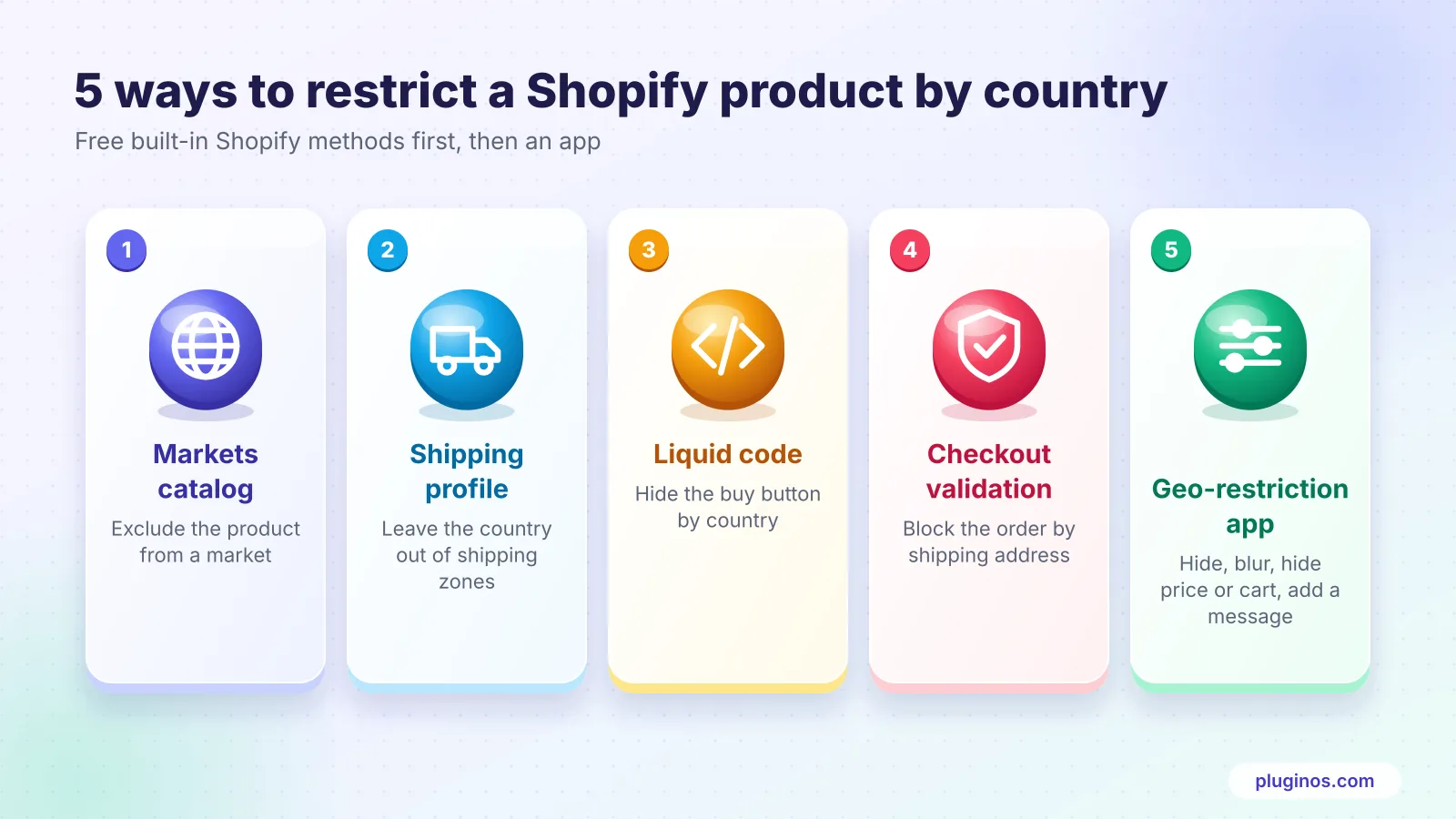
Need to stop a Shopify product from selling in certain countries? This guide compares five ways to restrict it: Markets catalogs, shipping profiles, Liquid code, checkout validation, and apps. See what each method hides or blocks, how to test it, and how to restrict products.

Nov 12, 2026 · 20 min read
You can restrict a Shopify product by country in five ways. Some hide the product, some only stop the order, and some quietly break your SEO. If you sell something you can't legally ship to certain countries, or you only hold distribution rights in some regions, the method you pick decides whether shoppers get a clear message or a confusing dead end.
This guide compares every working option: Shopify Markets catalogs, shipping profiles, Liquid code, checkout validation, and apps. For each one,Pluginos Geo Restrictions you'll get the steps, what it does and doesn't block, and where it fits.
Quick answer: To restrict a Shopify product by country without an app, exclude it from that market's catalog in Markets. To also stop orders by shipping address, move it to a shipping profile that leaves those countries out, or add a checkout validation rule. A geo-restriction app adds options Shopify lacks: hiding only the price or Add to cart button, custom messages, VPN detection, and keeping the product page indexable in Google.
Disclosure: we build Pluginos Geo Restrictions, one of the apps covered below. We've put the free, built-in Shopify methods first and included other apps so you can choose what fits your store.
Hide, block or stop shipping: what do you actually need?
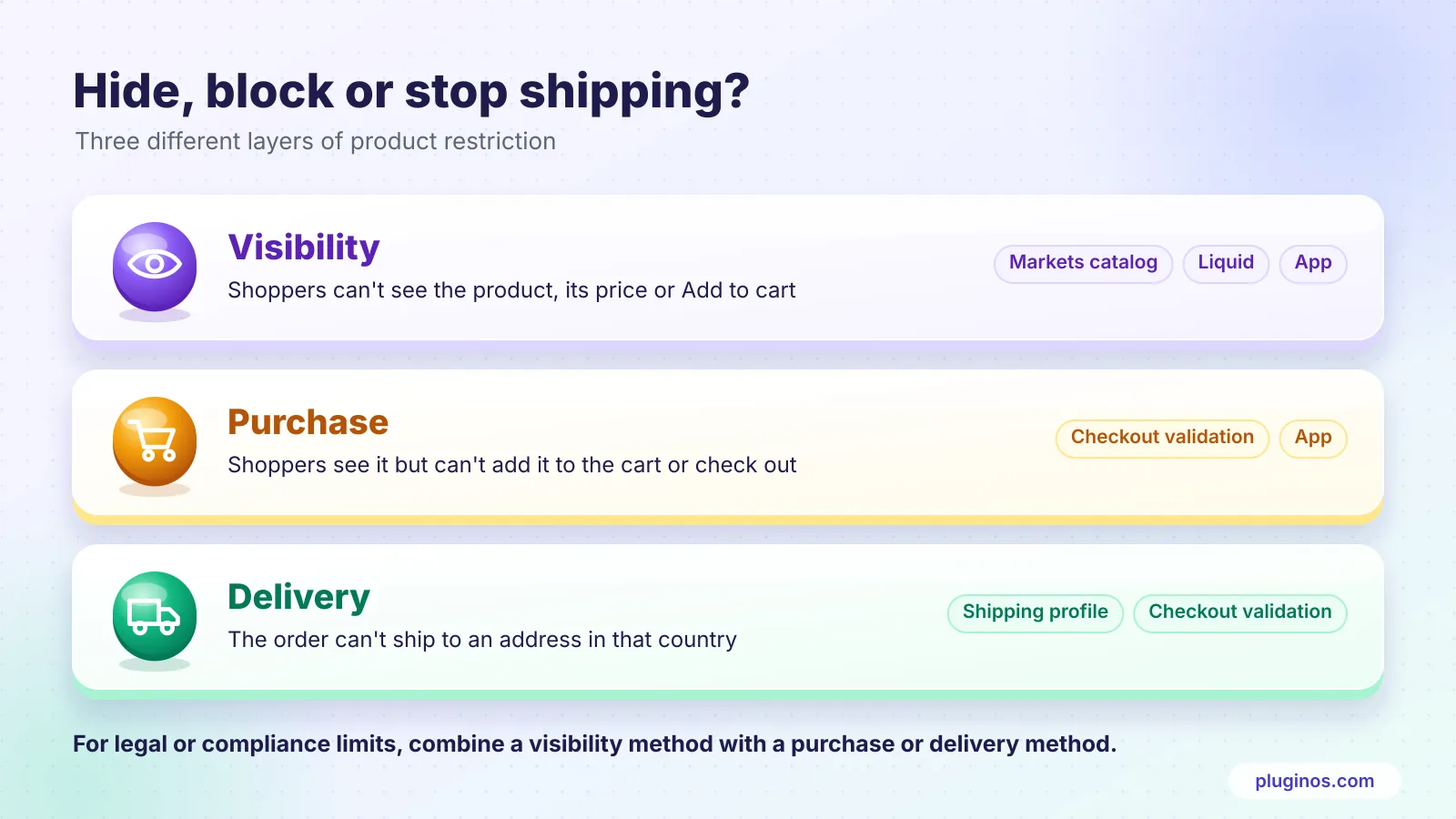
Restricting a product by country can mean three different things. Most confusion on Shopify forums comes from mixing them up.
Visibility: shoppers in the country can't see the product, its price, or its Add to Cart button.
Purchase: shoppers can see it, but can't add it to the cart or complete checkout.
Delivery: the order can't ship to an address in that country.
Which layer you need depends on why you're restricting the product:
Legal or regulatory limits (age-restricted goods, sanctions, export controls): block the purchase and the delivery. Hiding alone isn't enough.
Distribution or licensing agreements: hide the product or its price in territories you don't own.
Carrier limits or high shipping costs: stop delivery, with a clear message instead of an error.
Digital products and tax rules: block by the buyer's location, since there's no shipping address.
Selling into several countries also changes how you display tax. See how to show tax-included and tax-excluded prices in Shopify.
For anything compliance-related, combine one visibility method with one purchase or delivery method.
Comparison: 5 ways to restrict a Shopify product by country
Method | Hides the product | Blocks purchase | Holds up against VPNs | Keeps page indexable | Shopify plan | Cost | Best for |
|---|---|---|---|---|---|---|---|
1. Markets catalog | Yes, from listings and search | Yes, in that market | Partly (enforced at checkout) | No, page can 404 in that market | All (market limits apply) | Free | Removing a product from a whole market |
2. Shipping profile | No | Yes, no shipping rates at checkout | Yes (uses shipping address) | Yes | All | Free | Products you can't ship somewhere |
3. Liquid code | Hides the buy button | Weak (cart links bypass it) | No | Yes | All | Free + developer time | Simple display rules |
4. Checkout validation | No | Yes, by shipping address | Yes | Yes | App: any plan; custom function: Plus | App fee or development | Compliance hard blocks |
5. Pluginos Geo Restrictions | Yes: hide, blur, hide price or Add to cart | Yes, incl. cart links and Shop Pay | Yes (VPN detection) | Yes | All | From $3.99/month | Flexible storefront control by country |
Which should you choose?
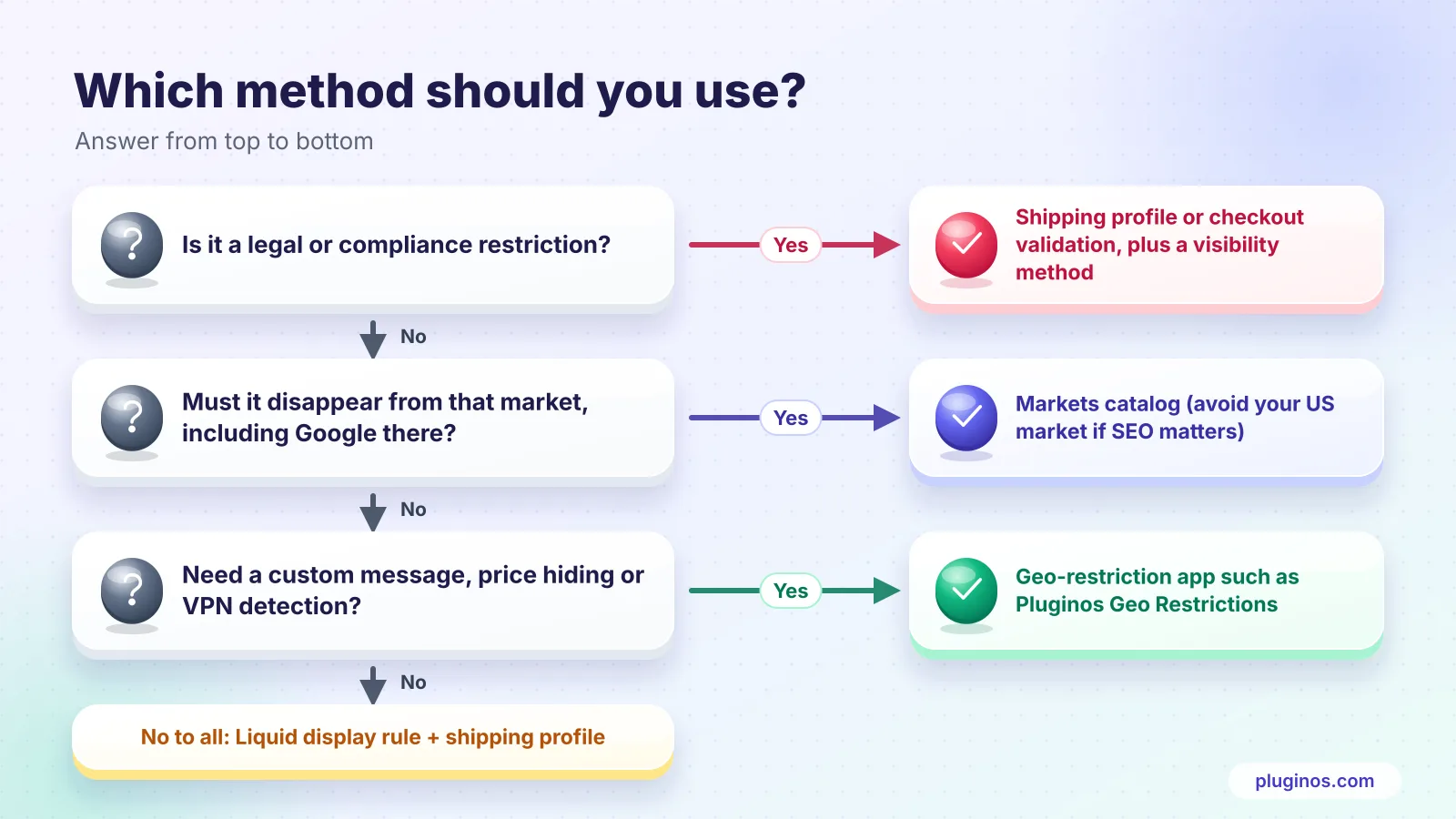
Is it a legal or compliance restriction? Use a shipping profile or checkout validation for the hard block, plus a visibility method.
Do you want the product completely gone in that country, including from Google there? Use a Markets catalog.
Do you want to keep the product page ranking in Google? Avoid catalog exclusion in your main market; use an app or a shipping profile.
Do you need a custom message, price hiding, or VPN detection without code? Use an app.
Method 1: Exclude the product from a Shopify Markets catalog (no app)
Shopify Markets is the built-in way to make a product unavailable in a country. A catalog is the list of products, with optional custom pricing, that a market can see and buy. By default, every product is available in every market at your default prices, so restricting a product means excluding it from a market's catalog.
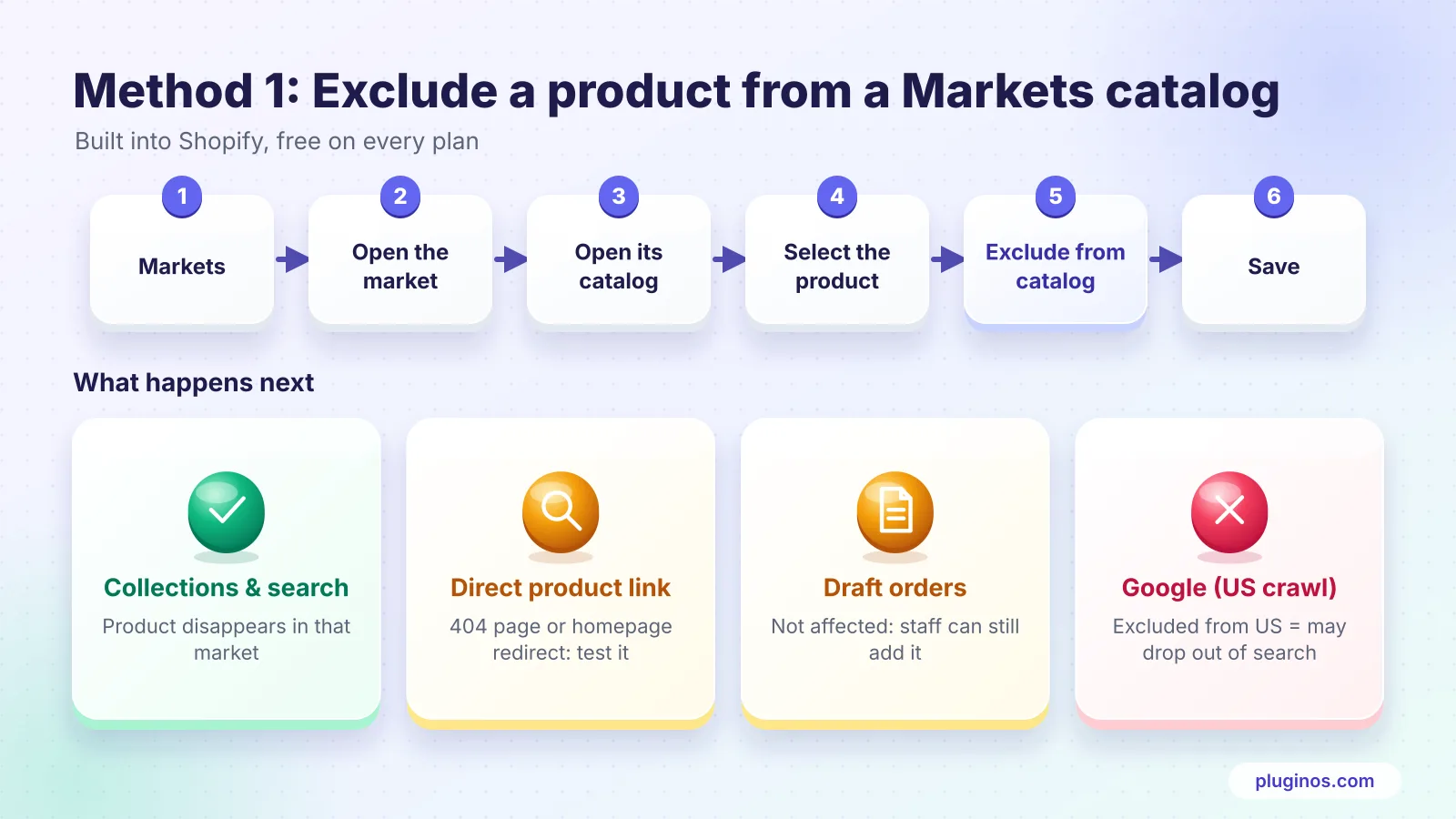
How to exclude a product from a market
In your Shopify admin, go to Markets (in older admins, Settings → Markets).
Open the market that should not see the product, for example "Germany" or "European Union".
Open the market's catalog and find the product.
Select the product's checkbox and click Exclude from catalog.
Click Save.
Restrict many products at once with CSV
For large catalogs, export the catalog, edit it, and import it back. The CSV includes a Catalog Title column (required), SKU or Handle to identify the product or variant, and a Published column. Set Published to FALSE for every product or variant the market shouldn't see.
Check your work
On the Products page, use View as and pick the market. Products excluded from that market show as Unpublished, and prices display in the market's currency.
What shoppers see, and the limits
Listings and search: the product disappears from collections and search results in that market.
Direct links: a shopper who opens the product URL can't buy it. Depending on your setup, they see your 404 page or are sent to the homepage, so test this on your own store.
Inheritance: catalogs from parent markets and submarkets can combine. Excluding a product in a parent market doesn't always behave the way you expect in a submarket, so check each one with View as.
Draft orders ignore it: staff can still add any product to a draft order, regardless of market rules.
Market limits by plan: Shopify's Managing markets page lists 3 markets on Starter, Basic, and Shopify (Grow) plans, 3 included and up to 50 on Advanced, and 50 on Plus. Check your admin, since limits differ between older and newer versions of Markets.
SEO side effect: a product excluded from the market Google crawls from (usually the US) can drop out of search. See the SEO section below.
Use Markets catalogs when you want a product fully gone in a market and don't need it to rank in Google for shoppers there.
Method 2: Use a shipping profile to stop orders to certain countries
A shipping profile controls where a product can be delivered, not who can see it. Because it checks the actual shipping address at checkout, it's one of the most reliable ways to stop an order from reaching a country, and it's free on every plan.
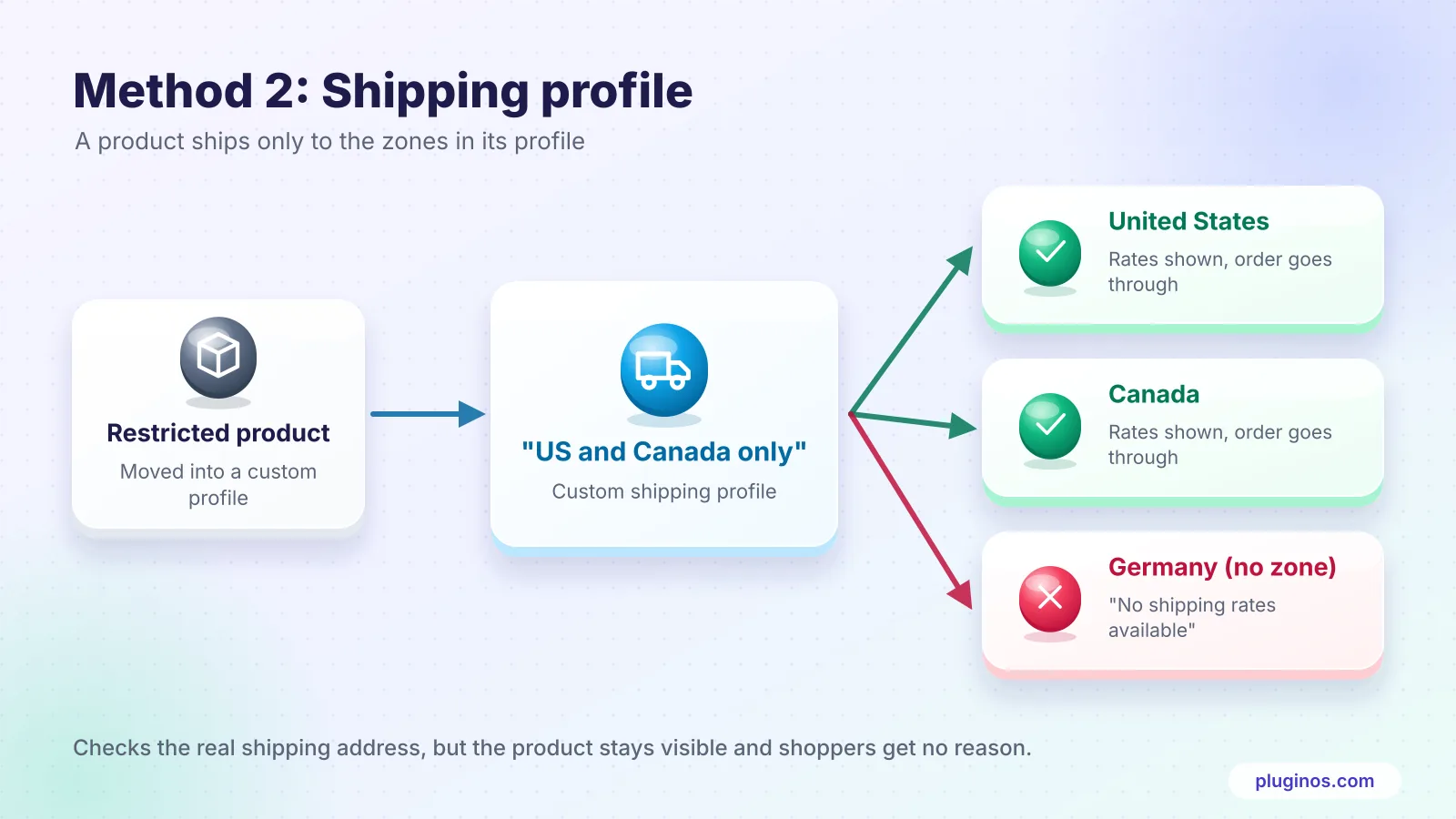
How to set it up
Go to Settings → Shipping and delivery.
Under shipping profiles, click Create custom profile and name it, for example "US and Canada only".
Add the products you want to restrict.
Add a shipping zone for each country you do want to ship to, and add rates.
Leave out every country you want to block. Click Save.
Rules to know
One product, one profile. Moving a product into a custom profile removes it from your General profile, so the custom profile's zones fully replace the general ones for that product. Other products keep shipping internationally.
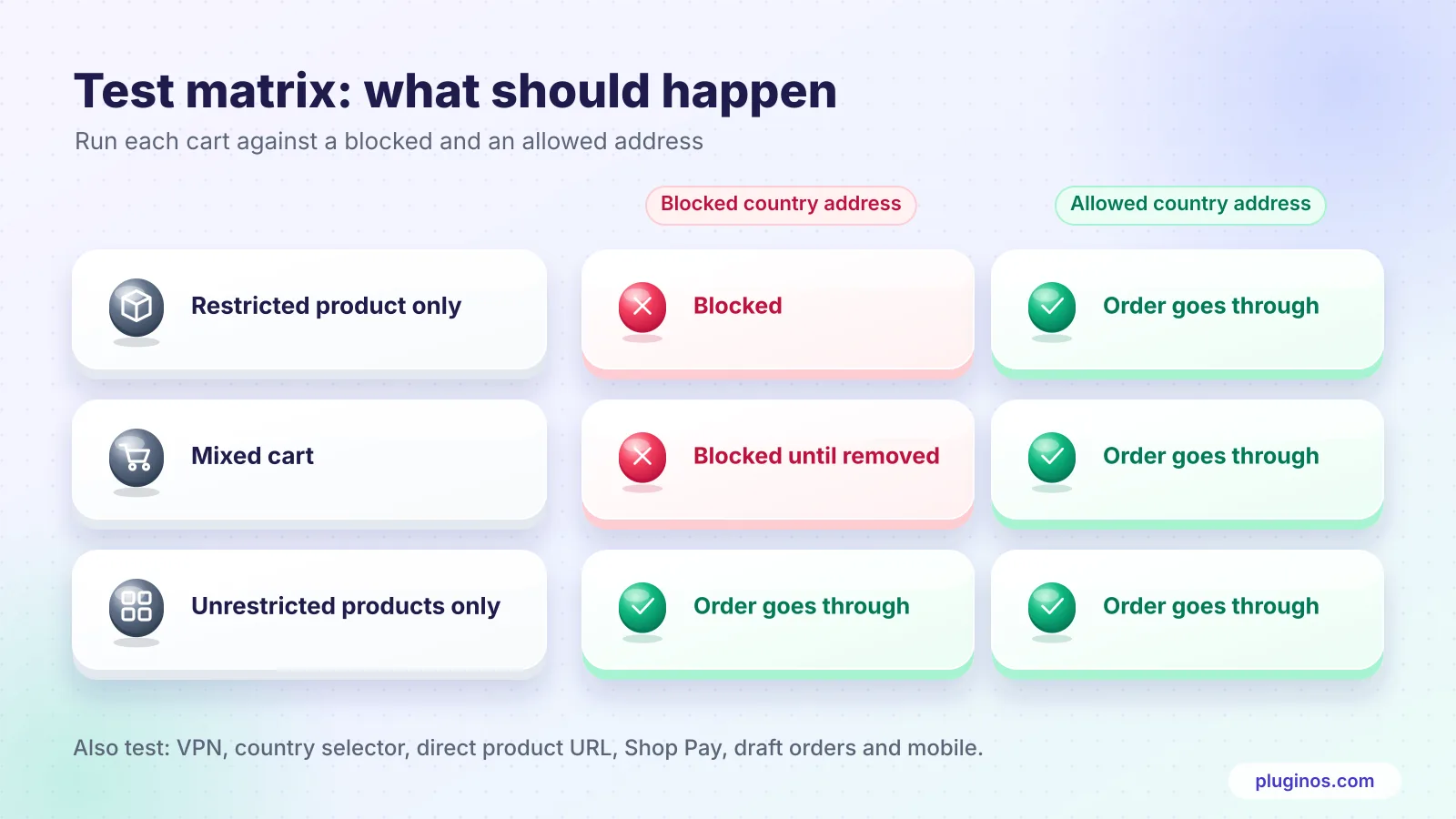
Mixed carts: if a cart has a restricted product and an unrestricted one, the shopper can't check out to a blocked country until they remove the restricted item.
The downside: a confusing error
The product stays visible and can be added to the cart. Shoppers in blocked countries only find out at checkout, where they see "No shipping rates available" with no explanation. That causes support tickets and abandoned carts. Reduce it by adding a short note on the product page, such as "Ships to the US and Canada only", or by pairing this method with a visibility method or a checkout message (Methods 3–5).
Use shipping profiles when you simply can't deliver a product to certain countries and want a free, address-based block.
Method 3: Hide the buy button by country with Liquid code
If you're comfortable editing your theme, you can show or hide the Add to cart button based on the shopper's country. Shopify exposes the country the shopper is browsing in as localization.country.iso_code, a two-letter code such as US or DE. It reflects the shopper's detected location or the country they picked in your country selector.
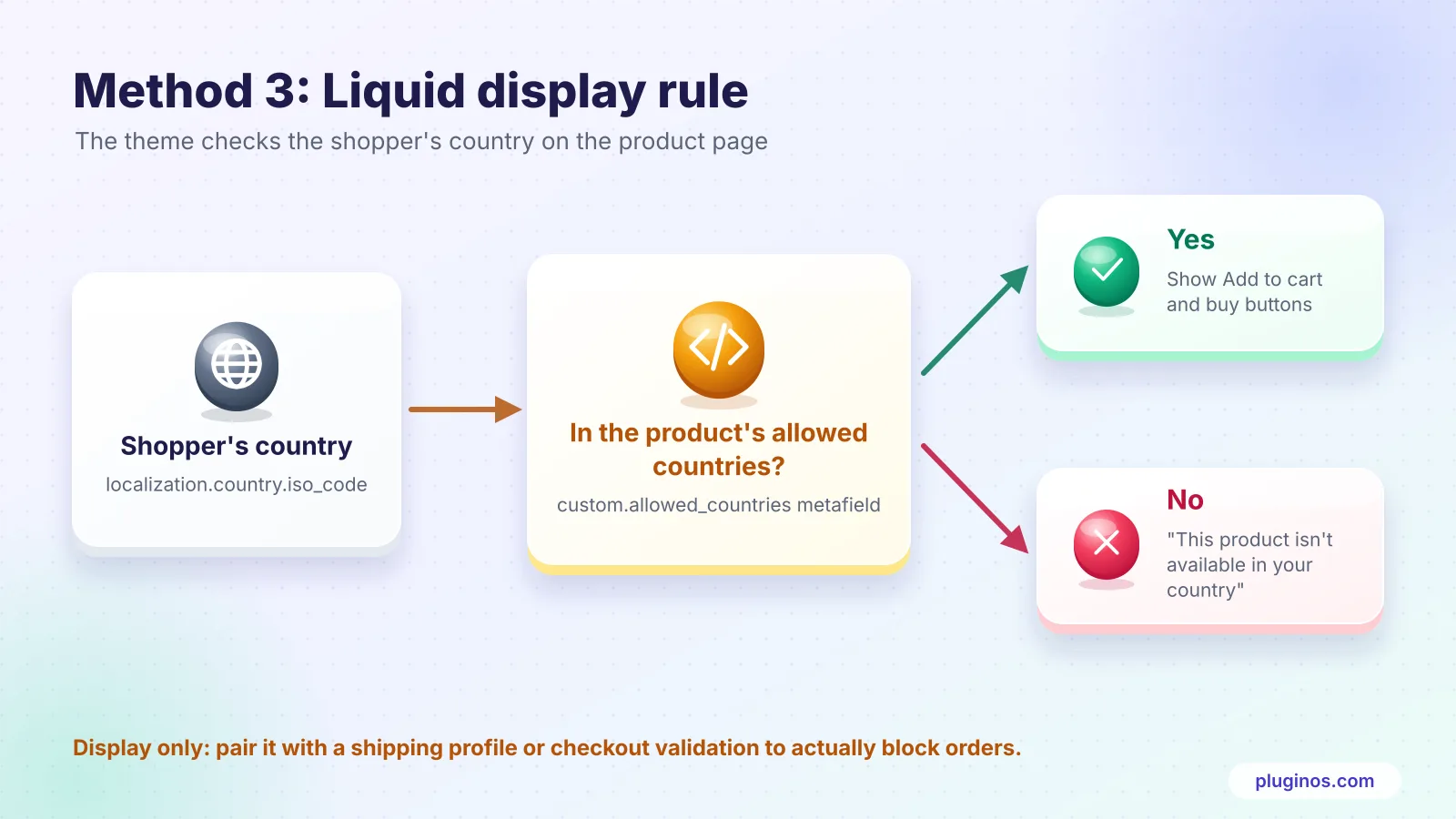
Step 1: Store the allowed countries on the product
Create a product metafield so you can manage the list without touching code again:
Go to Settings → Custom data → Products and add a metafield definition.
Name it "Allowed countries", namespace and key
custom.allowed_countries, type Single line text, list of values.On each restricted product, enter the allowed country codes, for example
US,CA,GB.
Step 2: Wrap the buy buttons in a condition
In Online Store → Themes → Edit code, find the section that renders your product form (in Dawn-based themes, usuallysections/main-product.liquid, where the buy buttons block is rendered). Wrap the buy buttons like this:
{%- assign allowed_countries = product.metafields.custom.allowed_countries.value -%}
{%- assign shopper_country = localization.country.iso_code -%}

{%- if allowed_countries == blank or allowed_countries contains shopper_country -%}
  {%- comment -%} Your theme's existing buy buttons go here {%- endcomment -%}
  {%- render 'buy-buttons', block: block, product: product, product_form_id: product_form_id, section_id: section.id -%}
{%- else -%}
  <p class="product-restricted-message">
    Sorry, this product isn't available in {{ localization.country.name }}.
  </p>
{%- endif -%}
Products with no allowed countries set behave as normal, so the rule only affects products you tag. Duplicate your theme and test there first; the exact file and render call vary between themes.
Limits of a theme-only approach
It's cosmetic. Hiding the button doesn't stop someone using a direct cart link or an accelerated checkout button elsewhere on the page.
Shoppers can switch country in the country selector or use a VPN.
Theme updates can overwrite your edit.
If an edit like this leaves the button missing for every shopper, our guide to fixing a Shopify Add to cart button that isn't working covers the usual causes.
Use Liquid when you want a free display rule and you pair it with a shipping profile (Method 2) or checkout validation (Method 4) for the real block.
Method 4: Hard-block checkout with cart and checkout validation
Checkout validation is the strictest option. It runs on Shopify's servers, checks the cart and the shipping address, and refuses the order with your own message if a rule fails. It uses the Cart and Checkout Validation Function API, part of Shopify Functions.
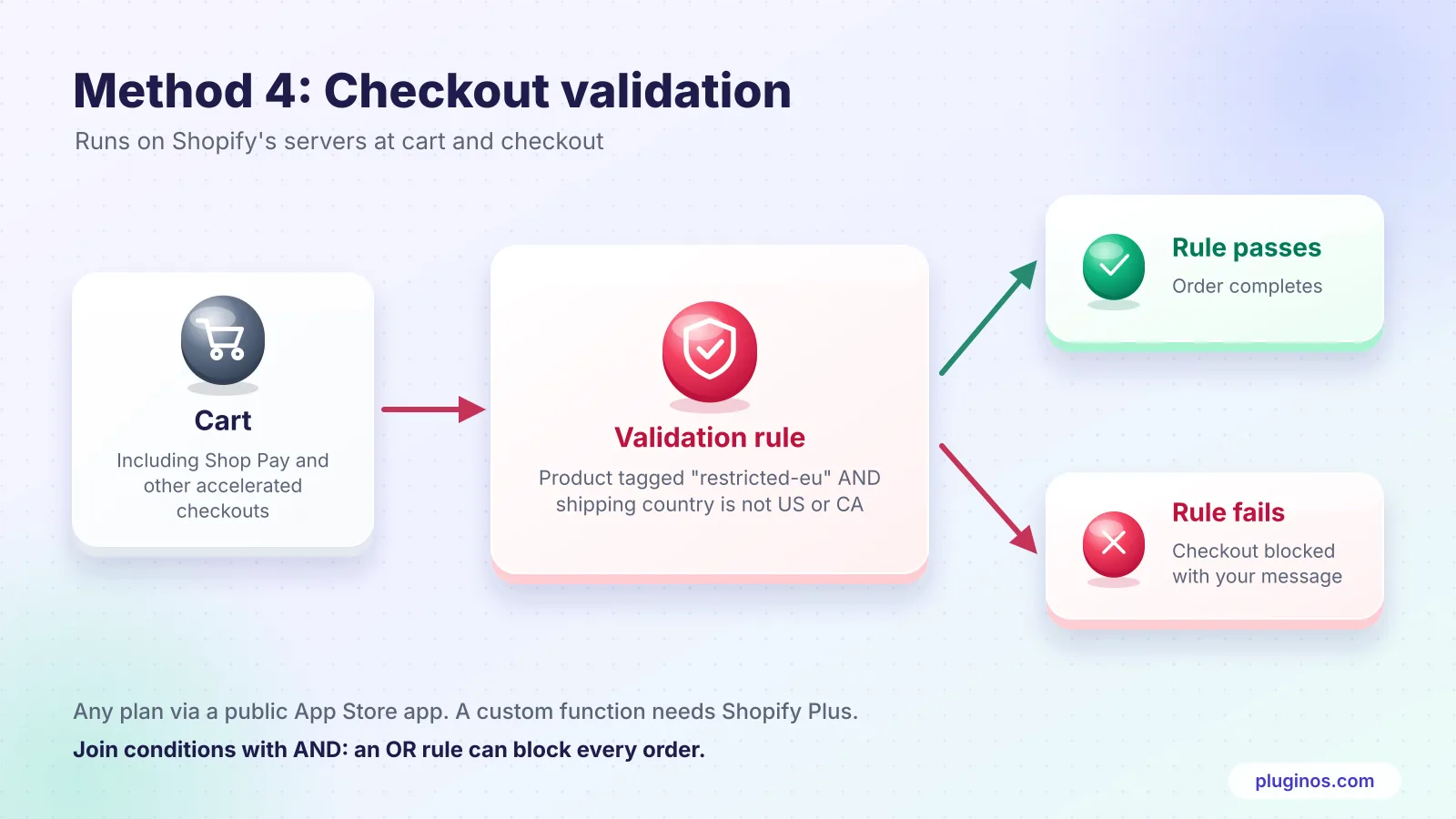
Why it's stronger than hiding
It checks the shipping address, so a VPN or a changed country selector doesn't get around it.
Shopify lists it as supported in the online store cart, checkout, B2B, headless storefronts, admin draft orders and accelerated checkout buttons. Shopify does not list it as supported for subscription renewals or orders created through the Create Order API.
It shows a clear reason, unlike the "No shipping rates available" error from Method 2.
Two ways to use it
A validation app from the Shopify App Store. Shopify lets stores on any plan use Functions from public apps. Several apps offer "block checkout if product X ships to country Y" rules without code.
A custom function. A developer writes the rule in your own custom app. Custom apps that contain Shopify Functions are available only on Shopify Plus (Shopify docs).
Writing a good rule
Describe the invalid state, then block it. For example:
If the cart contains a product tagged
restricted-euand the shipping country is not US or CA, block checkout with: "This item can only ship to the United States and Canada. Remove it to continue."
Join conditions with AND, not OR. An OR rule like "product tagged X OR country not US" blocks every non-US order, not just the restricted product.
Use checkout validation when selling the product to a country would be a legal or contractual problem and you need a block that can't be bypassed.
Method 5: Use a country restriction app like Pluginos Geo Restrictions

Native Shopify gives you two blunt choices: remove a product from a market, or let it fail at checkout. A geo-restriction app sits between the two. It lets you decide exactly what a shopper in a given country sees: the whole product, the product without a price, a greyed-out card, or a "Contact a local distributor" button.
Pluginos Geo Restrictions detects the visitor's country and applies your rules to products, collections, pages, or your whole store. You can install it from the Shopify App Store.
What it can do
Scope: entire store, specific products, collections, or pages, including individual variants such as one size or colour.
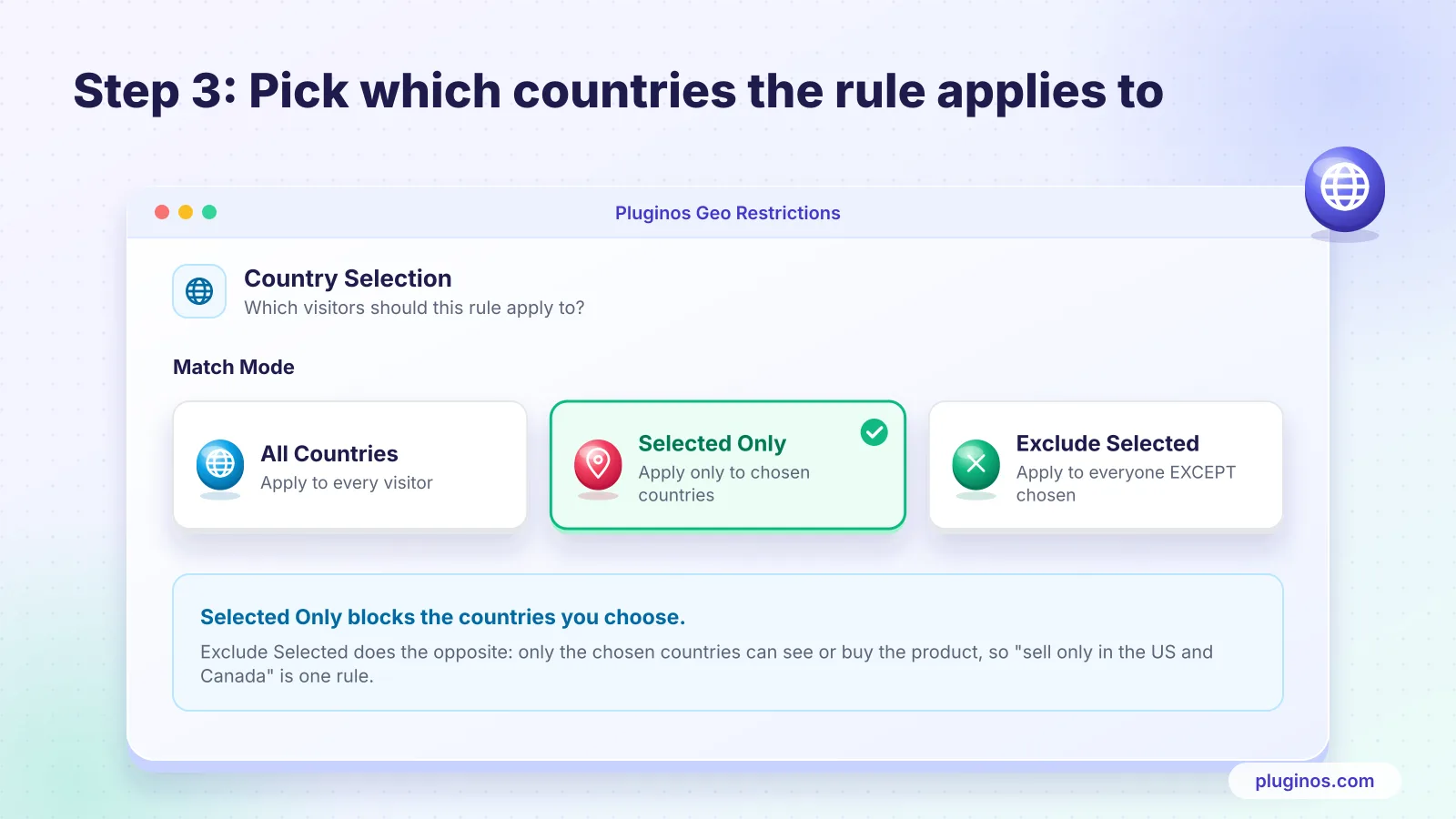
Country matching: apply to all countries, only selected countries, or everyone except selected countries, so "sell only in the US and Canada" is a single rule.
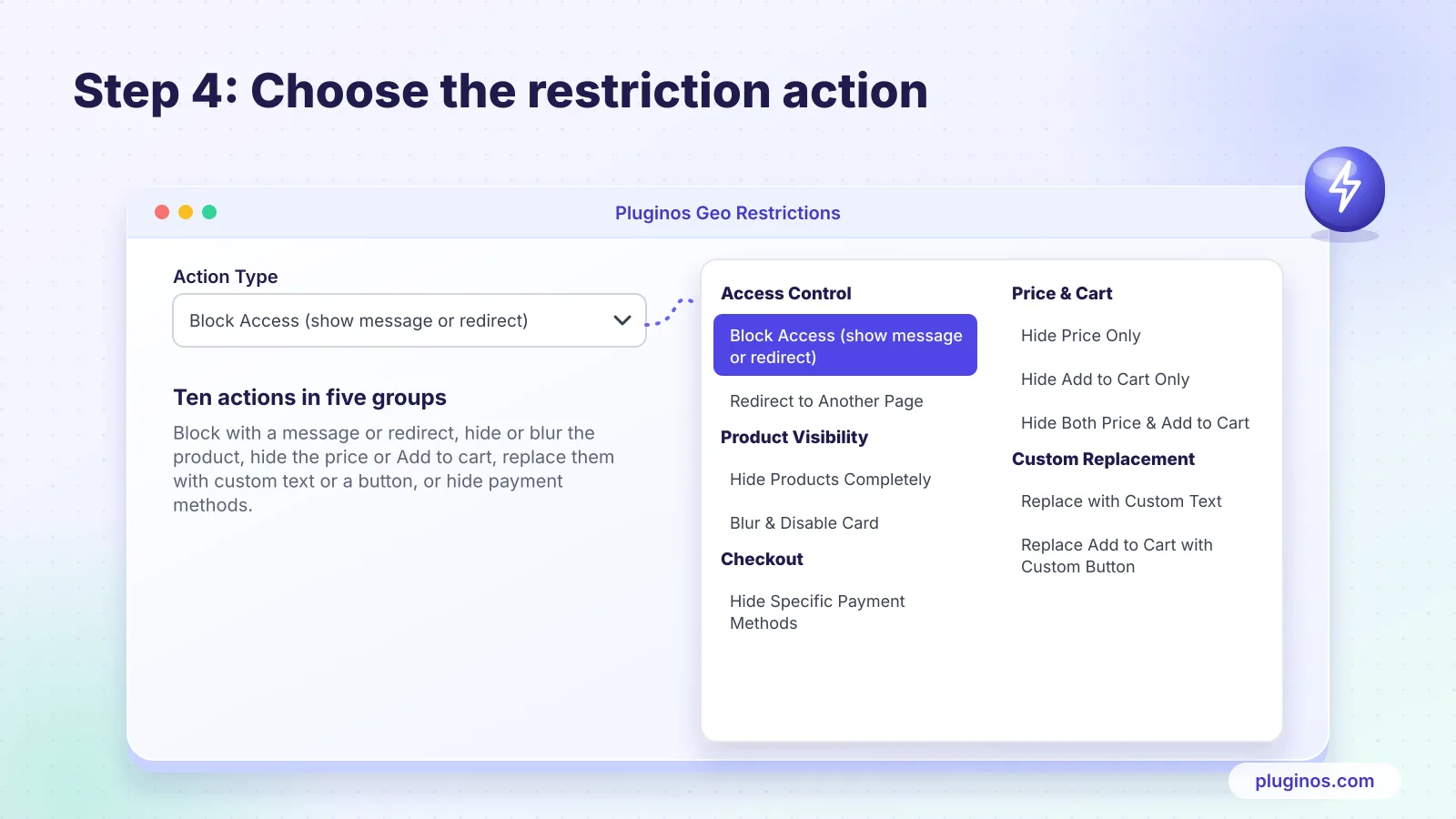
Actions:
Block access with a message, or redirect to another page
Hide the product completely, or blur and disable its card
Hide the price, the Add to cart button, or both
Replace the price or button with custom text, or swap Add to cart for a custom button
Hide specific payment methods by country
Messages: every rule can show its own message, in each of your store's languages, plus an optional popup.
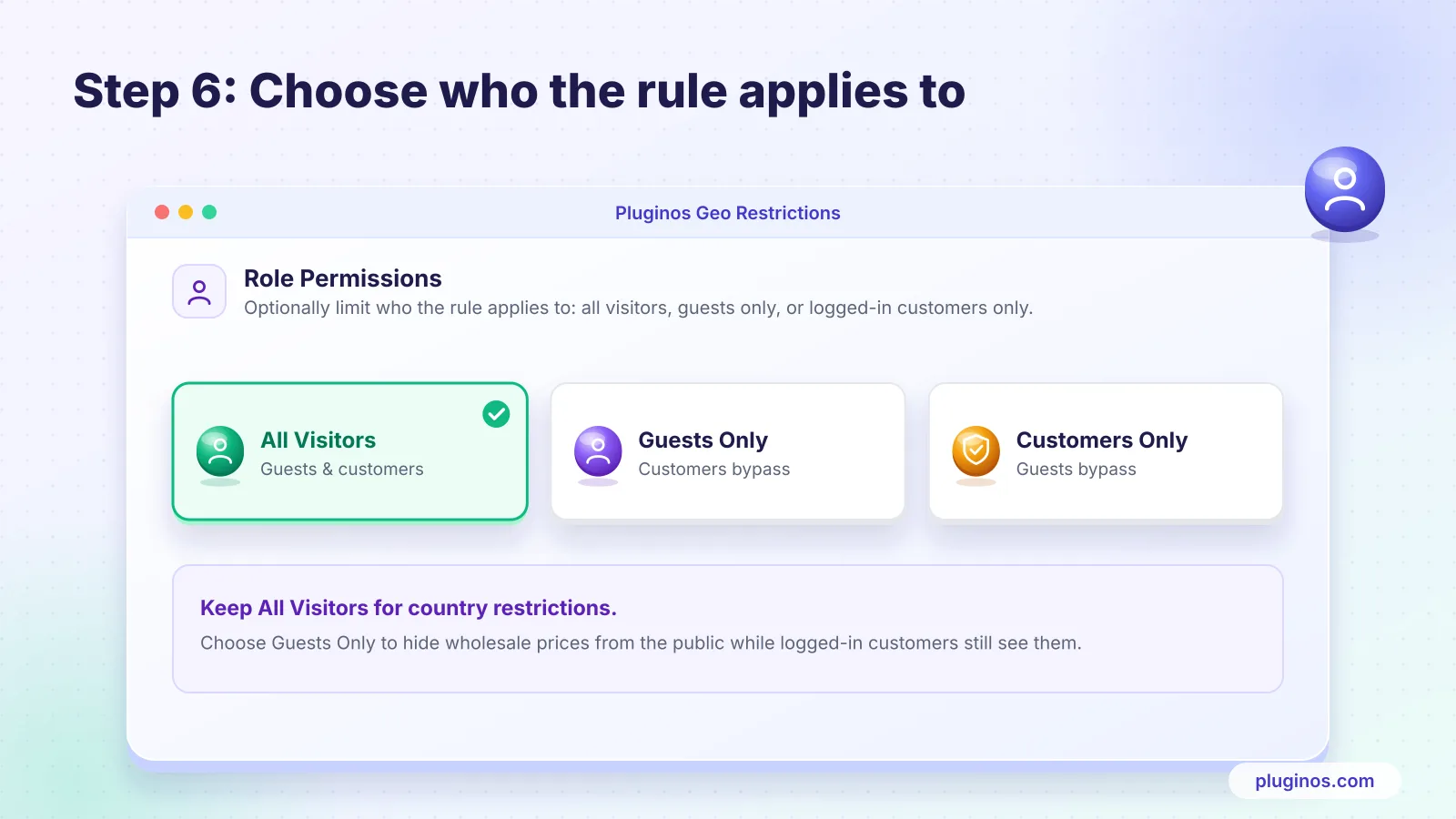
Who it applies to: all visitors, guests only, or logged-in customers only, which is useful for wholesale pricing.
Enforcement: VPN detection and hiding. Add to Cart also blocks direct cart links, Buy Now, and accelerated checkout buttons such as Shop Pay.
Scheduling: start and end dates for time-limited restrictions.
Step by step: restrict one product by country
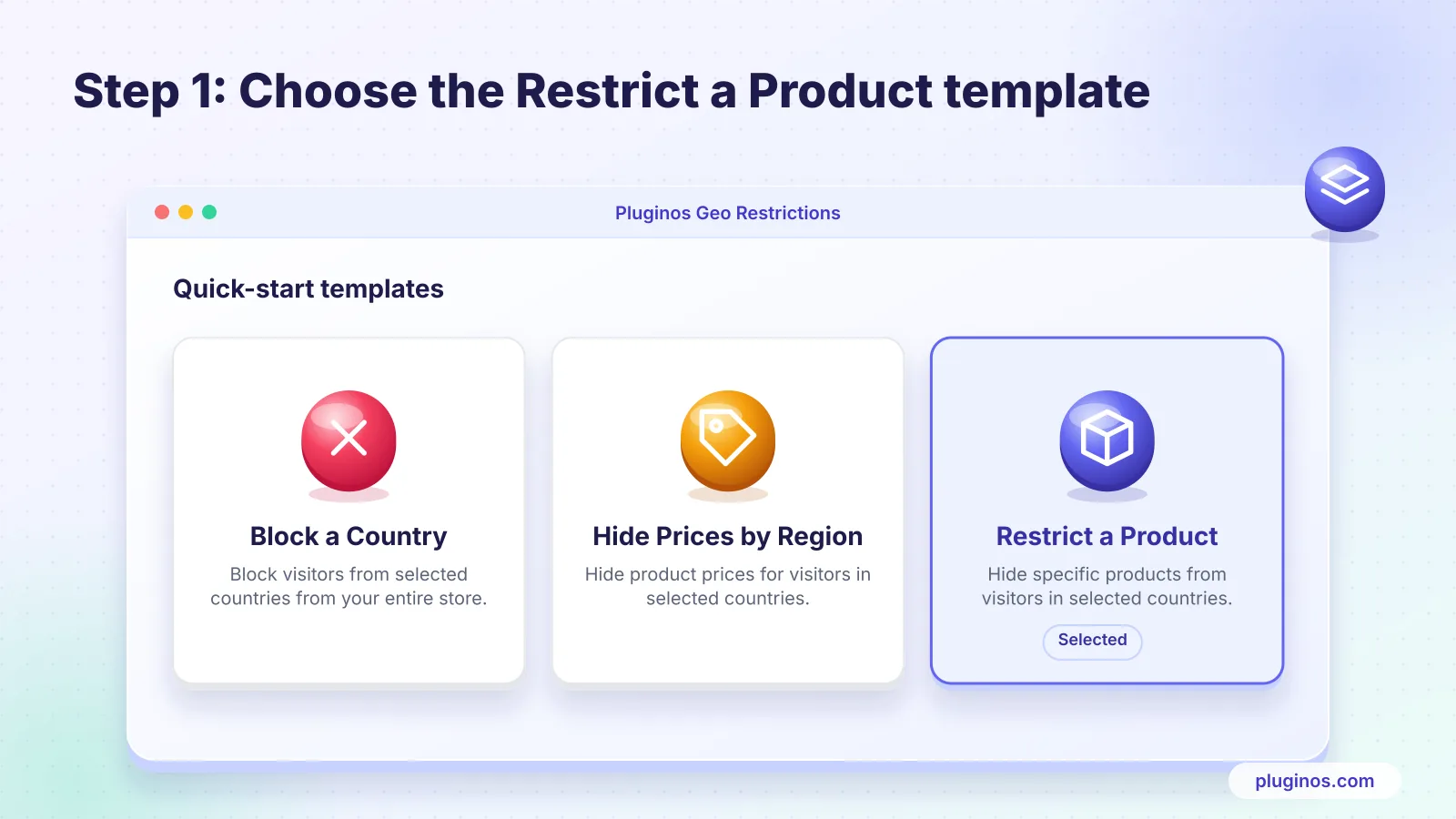
Install the app and choose the Restrict a Product quick-start template.
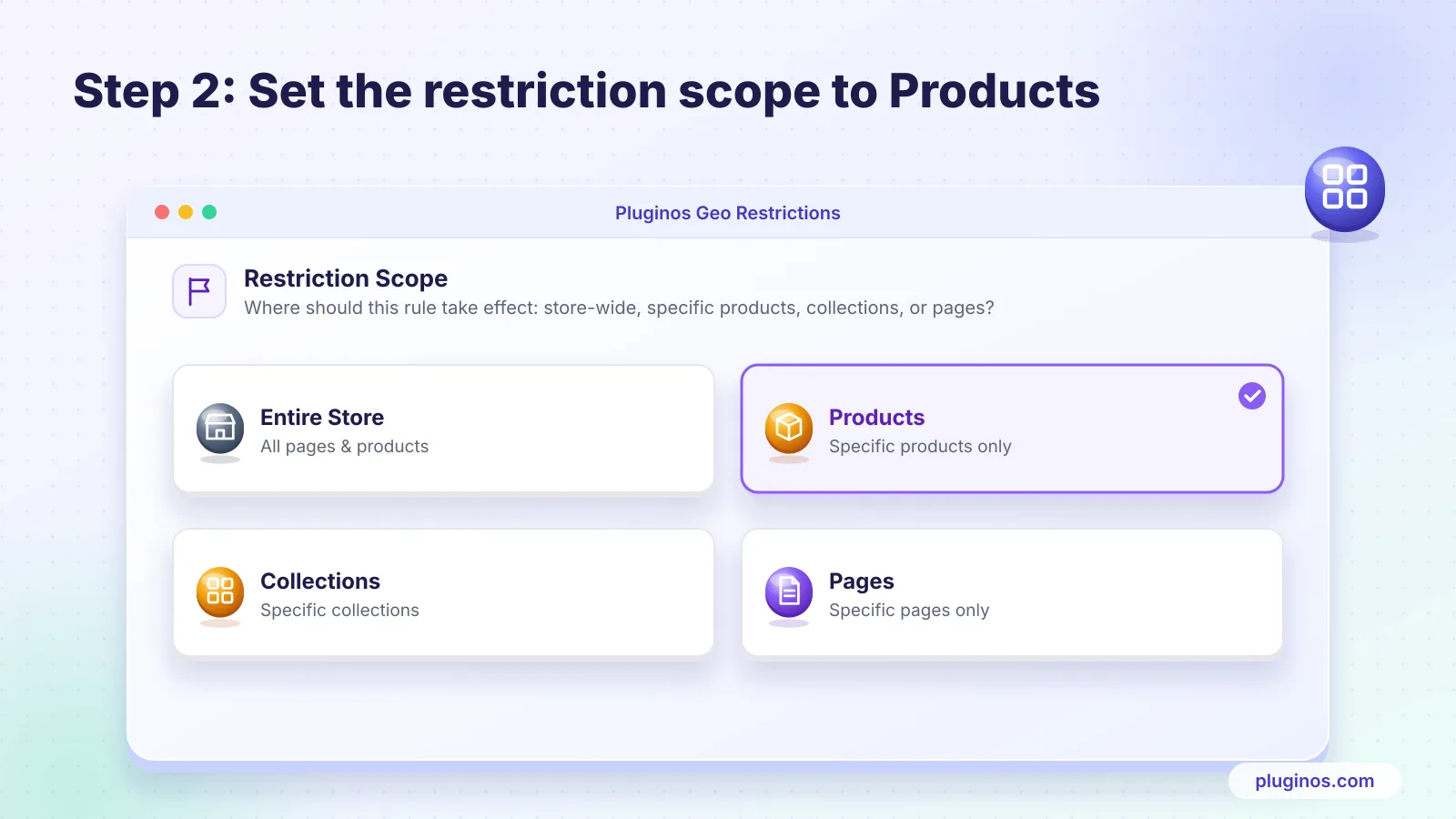
Under Restriction Scope, choose Products and select the product (or variant).
Under Country Selection, choose Selected only to block specific countries, or Exclude selected to allow only specific countries.
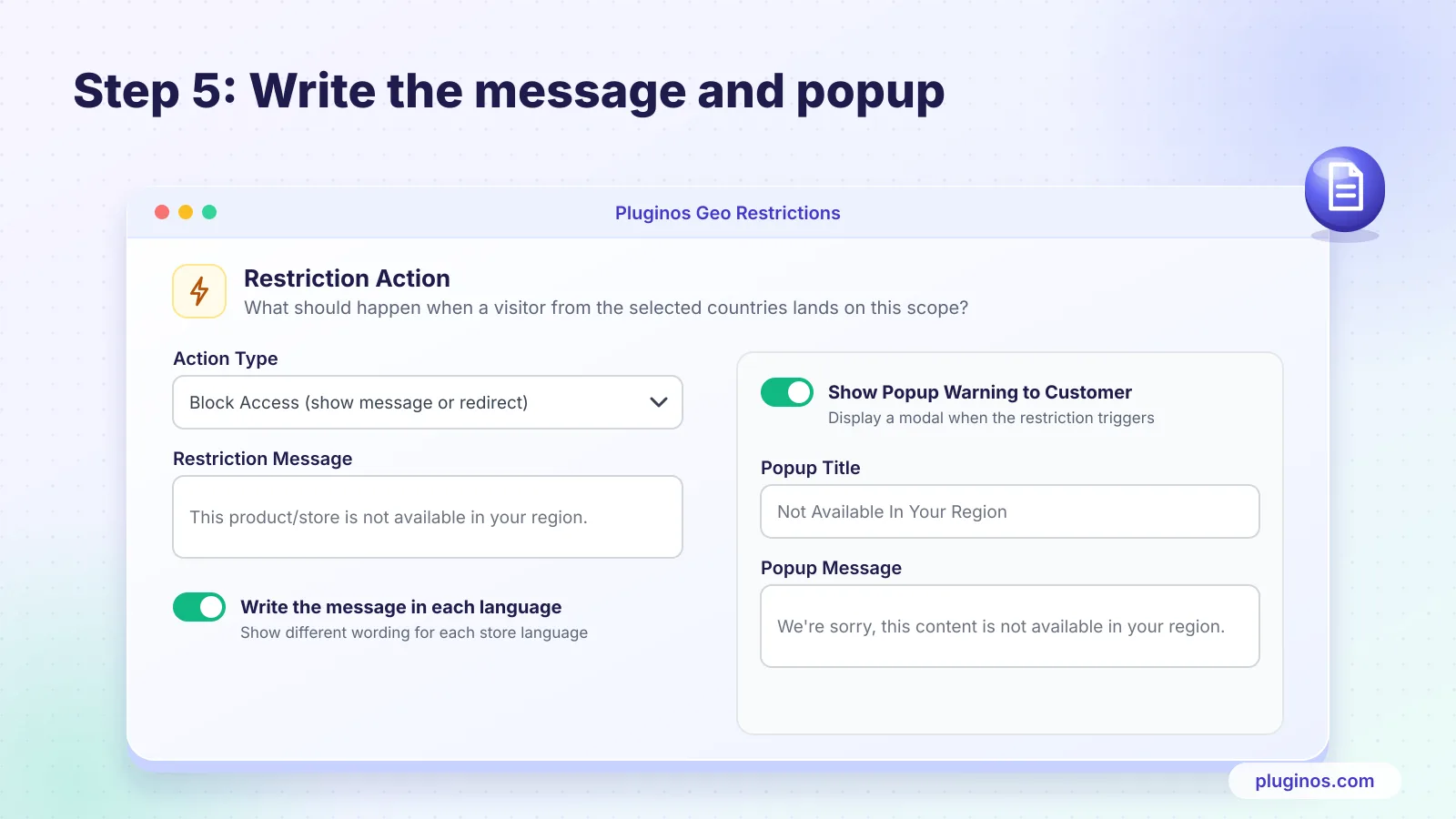
Under Restriction Action, pick what blocked shoppers should get, for example, Hide Add to Cart Only or Block Access (show message or redirect).
Write the restriction message, for example, "This product isn't available in your region." Turn on the popup if you want it to appear as a modal.
Under Role Permissions, keep All Visitors unless you want logged-in customers to bypass the rule.
Save, then test from a blocked country (see the checklist below).
Step 1: Start from the Restrict a Product template.
Step 2: Choose Products as the restriction scope.
Step 3: Select Only blocks the chosen countries; Exclude Selected allows only them.
Step 4: Pick the restriction action.
Step 5: Write the message shoppers see, and turn on the popup if needed.
Step 6: choose who the rule applies to.
Which action should you choose?
Situation | Recommended action |
|---|---|
Legal or compliance restriction | Block access with a message, plus a shipping profile or checkout validation |
Distributor or licensing territory | Replace Add to cart with a "Find a local stockist" button |
You want the page to keep ranking in Google | Hide Add to cart only (or hide price and cart) |
Product shouldn't be seen at all in a region | Hide product completely |
Wholesale prices hidden from the public | Hide price, applied to guests only |
Running a B2B store? Compare dedicated tools in our roundup of the best Shopify wholesale apps.
Pricing: pricing follows your Shopify plan, and every paid plan includes every feature: unlimited country rules, whole-store blocking, product/collection/page targeting, payment-method hiding, custom text, scheduling, and the quick-start templates. Standard is $3.99/month for Shopify Basic stores, Advanced is $5.99/month for Grow and Advanced stores, and Plus is $8.99/month for Shopify Plus stores. Annual billing ($33.49, $49.99 or $75.49 a year) saves 30%, and each plan has a 7-day free trial. Development stores can use it for free.
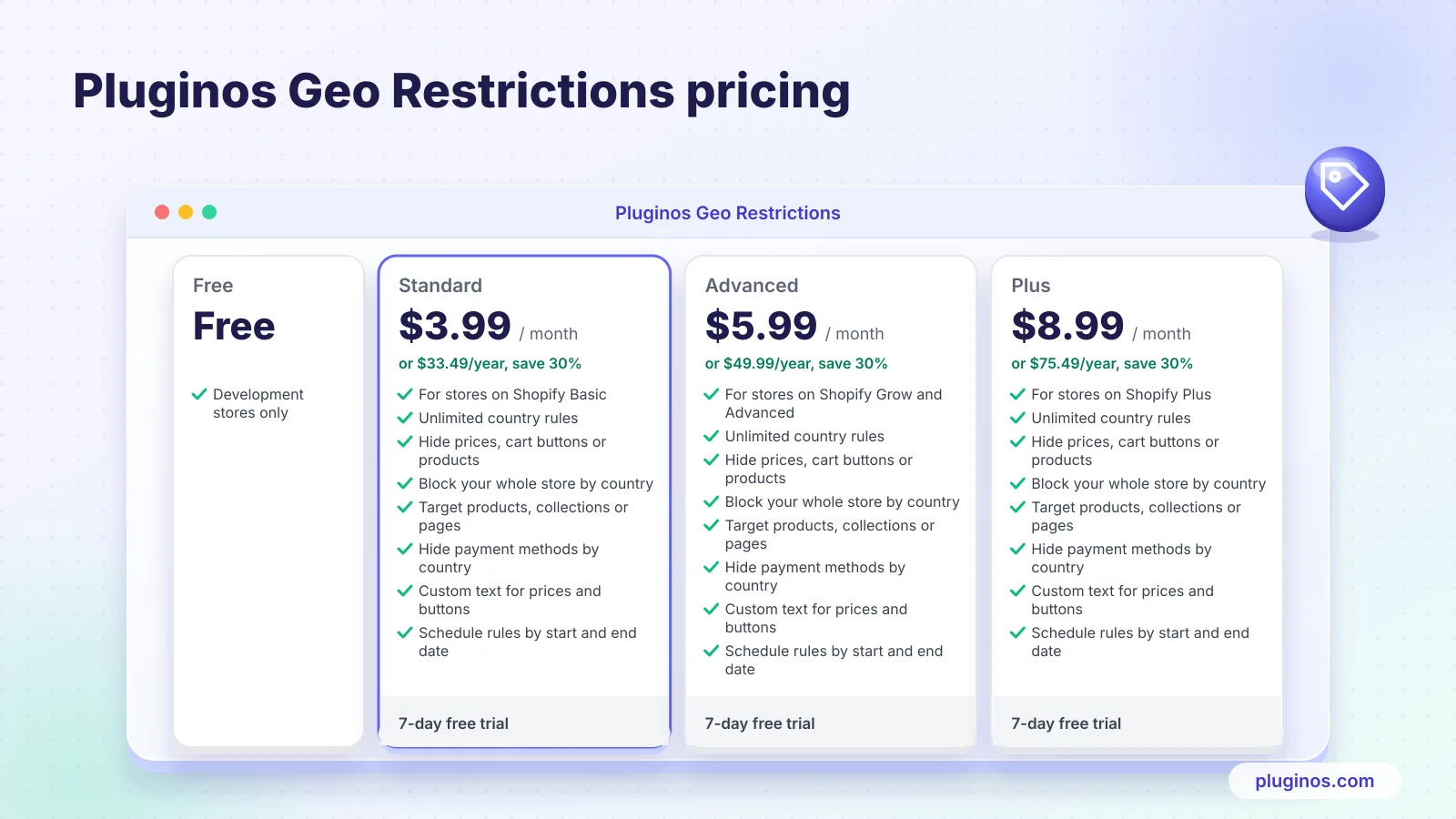
Other apps worth comparing
App | Approach | Starting price (at time of research) |
|---|---|---|
Block products, collections and variants by country or state | $6.99/month | |
Checkout validation rules, including by country | Free plan; paid from $3.99/month | |
Blocks checkout by product tag for countries, states or postal codes | Free |
How to restrict variants, collections, states or ZIP codes
Country-level rules don't cover every case. Here's how each method handles finer-grained restrictions.
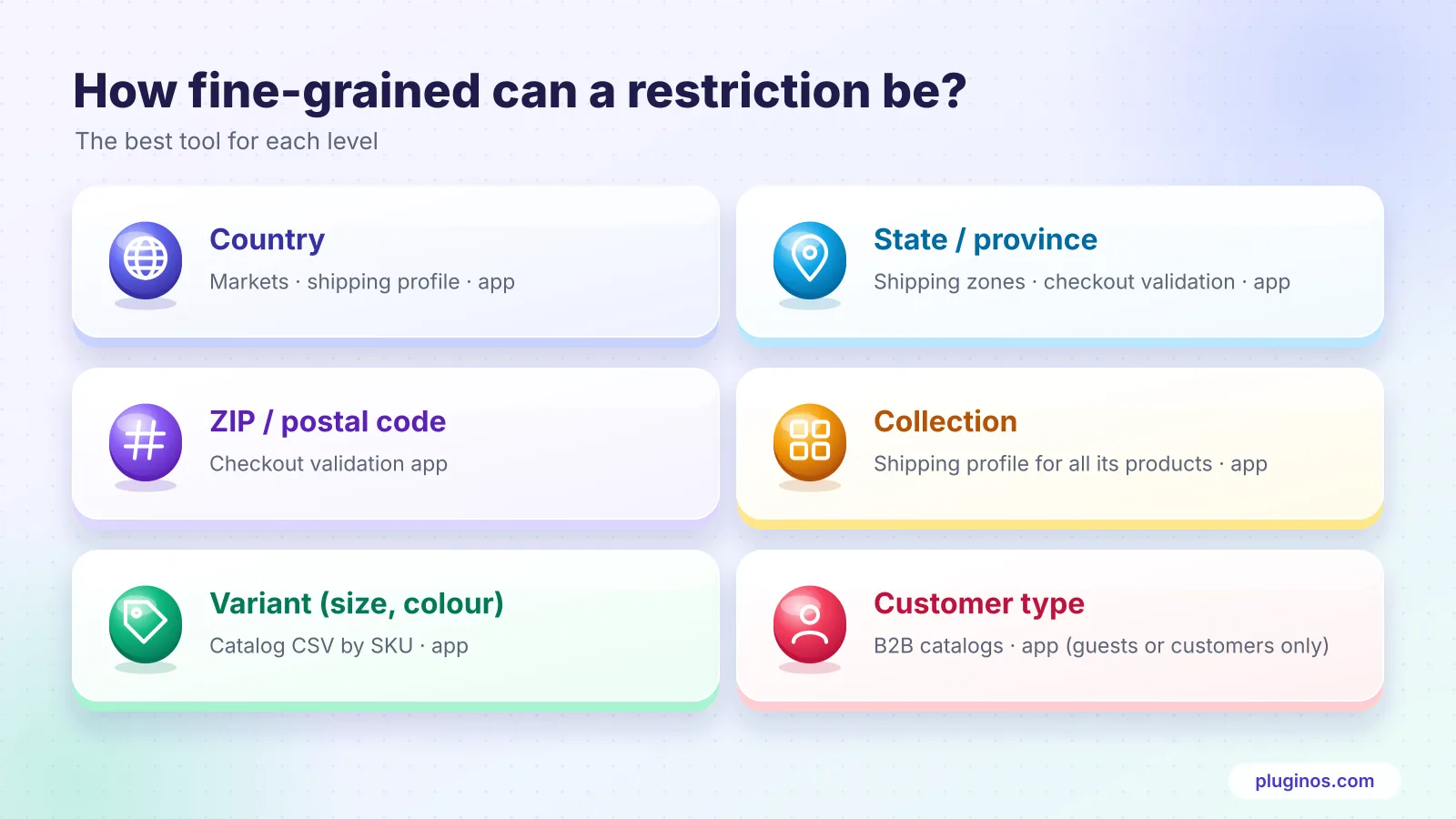
What you need to restrict | Native Shopify option | App option |
|---|---|---|
One variant (a size, colour or material) | Markets catalog CSV: set | Pluginos Geo Restrictions variant rule; AGeo Product Blocker |
A whole collection | No direct collection-by-country setting. Put every product in the collection into one shipping profile, or exclude them from the market catalog | Collection-scope rule in Pluginos or Addify |
A state or province (e.g. a product banned in California) | Shipping profile with zones that leave out that state | Checkout validation app (state or postal code); Pluginos lists state-level blocking |
ZIP or postal codes | Not supported in shipping zones, which work at country and state level | Checkout validation apps such as sK Shipping Restrictions or Cart Block |
Specific customers (wholesale, logged-in only) | B2B catalogs for company customers | Pluginos role permissions: guests only or customers only |
For state and ZIP-code restrictions on regulated goods, checkout validation is the safest choice because it checks the exact delivery address.
If you need to hide variants because they're sold out rather than because of location, see 6 methods to hide out-of-stock variants in Shopify.
How restricting products affects SEO and Google Shopping
This is the part most guides skip, and it can cost you rankings you've worked hard for.
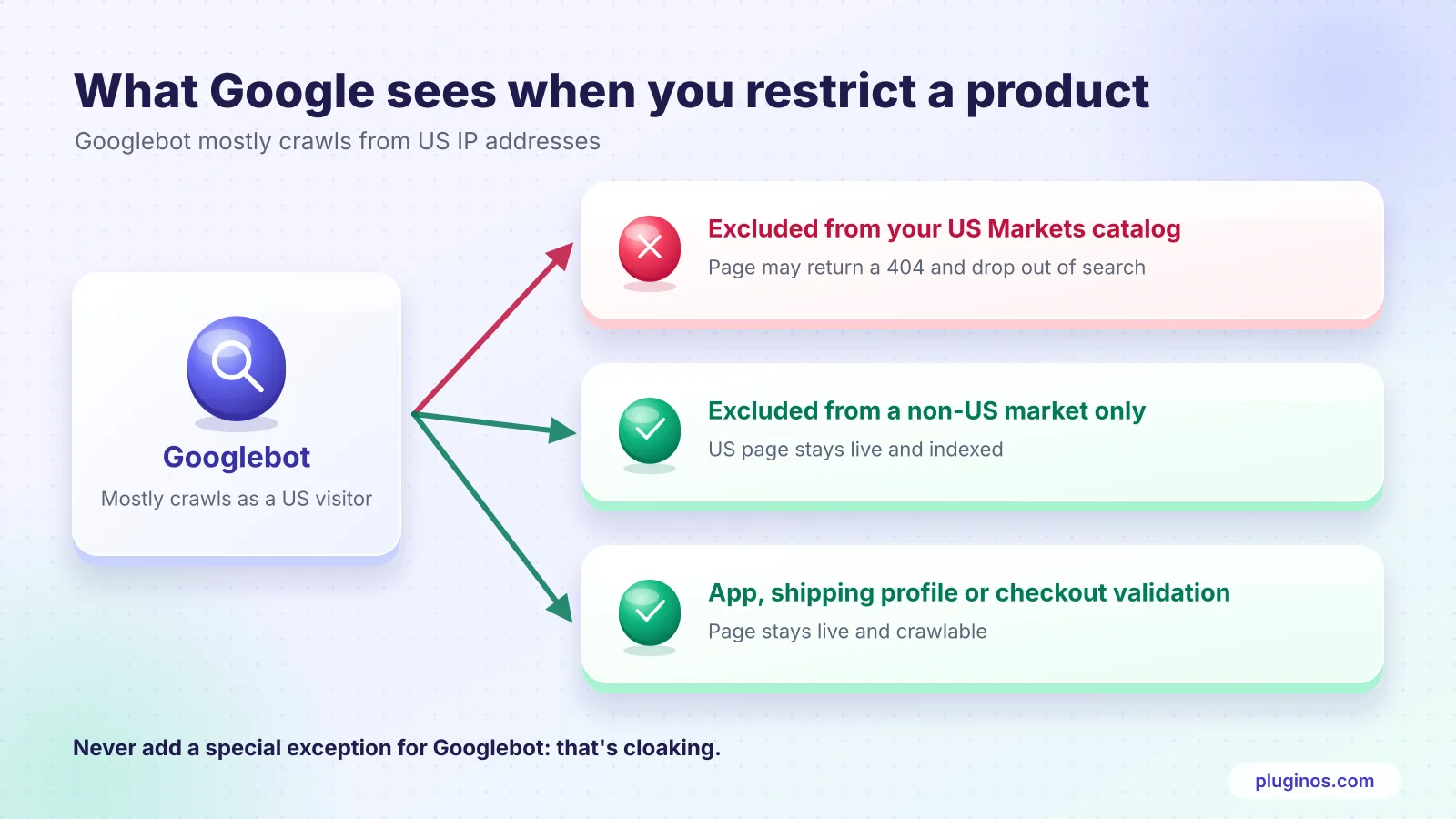
Googlebot mostly crawls from the US
Google says Googlebot crawls from US IP addresses by default and adds crawls from other countries for pages that change by location. Its advice is to treat Googlebot like any visitor from the country it appears to come from (Google Search Central). In practice, Google sees your store the way a US shopper does.
What that means for each method
Markets catalog exclusion: a product unpublished for a market isn't available on its product page there. Global-e's documentation warns that this can make blocked product pages return a 404 and affect indexing (Global-e). If you exclude a product from your US market, Google may stop seeing it entirely.
Shipping profiles and checkout validation: the product page stays live for everyone, so rankings are unaffected.
Pluginos Geo Restrictions: the page stays live and crawlable. Search engines can still see restricted product pages, so they keep ranking while shoppers in blocked countries see your chosen restriction.
Google Shopping: Shopify notes that catalog availability also applies to Google & YouTube product feeds. Excluding a product from a market can remove it from Shopping ads and free listings there. Check Merchant Center diagnostics after any change.
Safe rules for geo-restricted products
Don't restrict a product in the US if you want it indexed, unless you accept that Google will see the restricted version.
Prefer "visible but not purchasable" (hide Add to cart, keep the page) in markets where you still want visibility.
Never add a special exception for Googlebot. Showing search engines something different from what a visitor in the same location sees is cloaking, which breaks Google's spam policies.
Check the result with the URL Inspection tool in Google Search Console after you set up the rule.
Test your country restriction before you rely on it
A restriction that works in the admin can still leak on the storefront. Run these checks from a blocked country, using a VPN or a colleague abroad, before you announce anything.
Open the product from the homepage, a collection, and on-site search
Open the product URL directly, and note whether you see the product, a message, a 404, or a redirect
Switch country with the store's country selector, then check again
Try adding to cart with a direct cart link and a Buy Now button
Try Shop Pay, Apple Pay, and Google Pay on the product page
Check out a cart with only the restricted product to a blocked address
Check out a mixed cart (restricted and unrestricted products) to a blocked address
Check out to an allowed address, to confirm you haven't blocked real customers
Create a draft order with the product: Markets catalog rules don't apply to draft orders, so make sure your team knows the restriction
Repeat the key checks on mobile
Inspect the URL in Google Search Console to confirm what Google sees
Re-run the checklist after theme updates, app updates, or changes to your markets.
Legal and compliance notes
Country restrictions often exist for legal reasons, such as sanctions, export controls, age-restricted or regulated goods, and product safety rules that differ by country. Payment providers and carriers set their own lists of restricted goods too. If you use Shopify's Managed Markets (formerly Markets Pro), Shopify automatically hides products that are prohibited in a destination country from customers there (Shopify Help).
This guide explains how the tools work; it isn't legal advice. Confirm your obligations with a qualified adviser, and for anything legally restricted, use a block based on the shipping address (Method 2 or 4), not location detection alone.
FAQ
Can you restrict a Shopify product by country without an app?
Yes. Exclude the product from the market's catalog in Shopify Markets to hide it in that country, or put it in a custom shipping profile that leaves the country out to stop delivery. Both are free on every plan. You need an app for custom messages, price-only hiding, VPN detection, or a hard checkout block without Shopify Plus development.
Can I hide a product in one country but keep it on Google Shopping?
Partly. Excluding a product from a market's catalog also affects its Google & YouTube feed availability for that market. To keep the product listed and indexed, leave it published and restrict the purchase instead, for example by hiding Add to cart with an app or blocking the shipping address.
Does Shopify Markets stop VPN users?
Not fully. A shopper on a VPN can browse as another market, though catalog availability is checked again at checkout. A shipping profile or checkout validation checks the real delivery address, and some apps, including Pluginos Geo Restrictions, detect VPNs.
How do I restrict a digital product by country?
Digital products have no shipping address, so shipping profiles don't help. Use market catalog exclusion, a location-based app with VPN detection, or a checkout validation rule based on the billing country.
Can I restrict Shopify products by state or ZIP code?
By state, yes: use shipping zones that leave out the state, or an app. By ZIP or postal code, you need a checkout validation app, because standard shipping zones work at country and state level.
Is removing a shipping rate enough, and why do customers see "No shipping rates available"?
That message appears when a product's shipping profile has no zone for the shopper's address. It does stop the order, but shoppers get no explanation. Add a note on the product page or a clear checkout validation message so they understand why.
Do I need Shopify Plus to block checkout by country?
No. Stores on any plan can use checkout validation from public apps in the Shopify App Store. Shopify Plus is only needed if you want your own custom app with Shopify Functions.
Can I hide only the price or the Add to cart button by country?
Not natively. Shopify Markets hides or shows the whole product. Apps such as Pluginos Geo Restrictions can hide just the price, just the Add to cart button, or both, and replace them with custom text or a button. If you want to hide prices from logged-out visitors rather than by country, see Shopify login to see price.
Conclusion: the right method for your situation
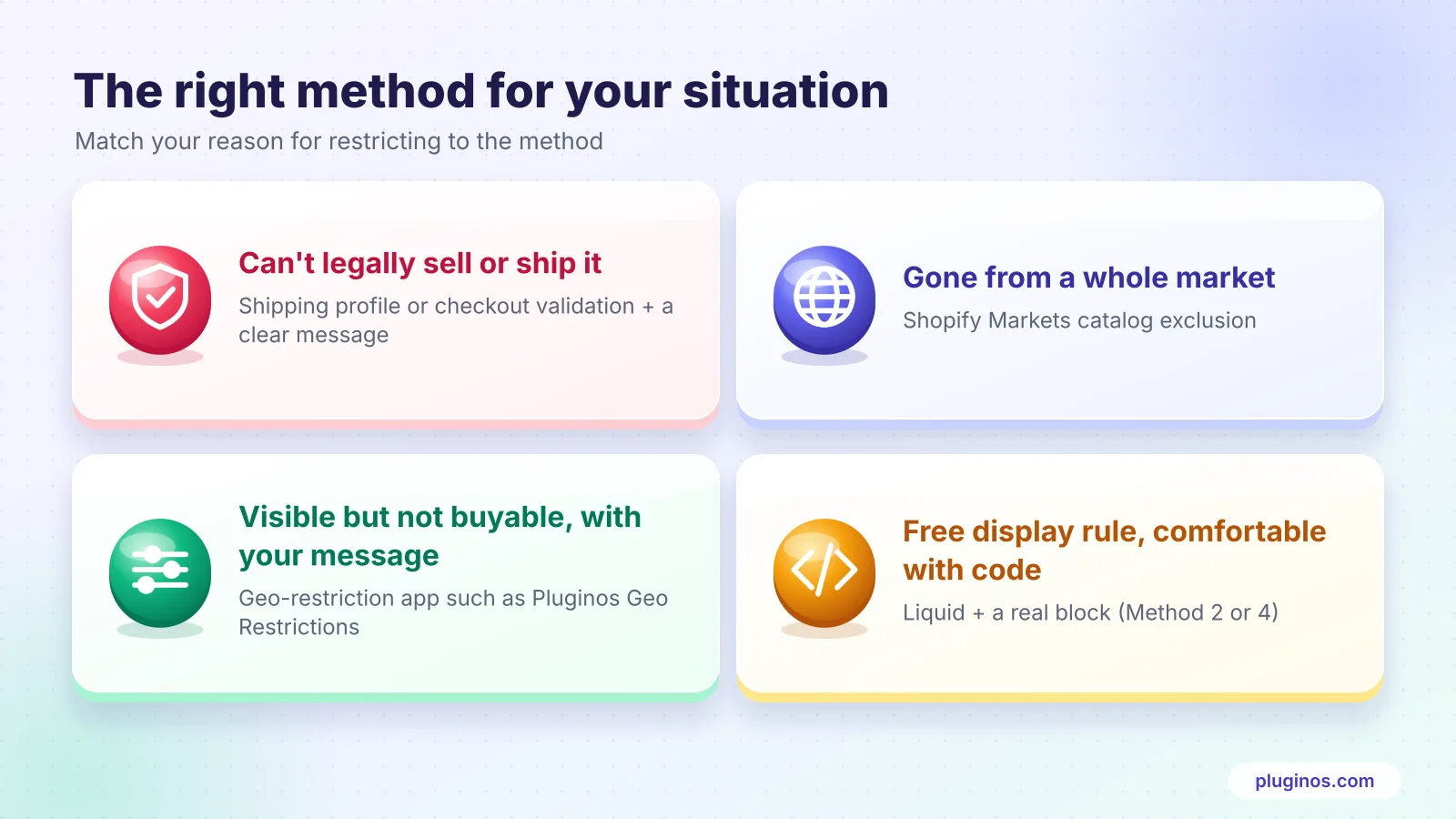
Can't legally sell or ship it somewhere: shipping profile or checkout validation, plus a clear message.
Want it gone from a whole market: Shopify Markets catalog exclusion, avoiding your US market if SEO matters.
Want it visible but not buyable, with your own message: a geo-restriction app.
Comfortable with code and want a free display rule: Liquid, paired with a real block.
If you want the no-code route, Pluginos Geo Restrictions starts at $3.99/month with a 7-day free trial. Its Restrict a Product template sets up your first rule in a few minutes, and the product page stays visible to Google.
Written by
Pluginos
Pluginos is a WordPress, WooCommerce, and Shopify development team with 8+ years of experience building plugins, apps, and eCommerce solutions. We share practical tutorials and insights based on hands-on development experience.
Tools from this article
Related articles
10 Best Email Marketing Apps for Shopify in 2026 (Compared)
From welcome flows to abandoned cart emails, the right email app depends on your list size and budget. We compared 10 Shopify email marketing apps, starting with Kaching Email Marketing, on pricing, automations and limits. We also explain when Shopify's built-in Messaging, with 10,000 free emails a
Nov 22, 2026 · 16 min read
10 Best Shopify Popup Apps in 2026: Pricing & Features
Popups can grow your email list or raise order value, but the wrong one slows your store or annoys shoppers. We compared 10 Shopify popup apps, led by Kaching Discount Upsell Popup, on pricing, popup types and drawbacks. We also explain how to stay within Google's guidance on intrusive popups.
Nov 22, 2026 · 17 min read
10 Best Post-Purchase Upsell Apps for Shopify in 2026
Post-purchase upsells show a one-click offer after checkout, before the Thank You page, so customers don't have to re-enter their card. We compared 10 Shopify apps, led by Kaching Post Purchase Upsell, on pricing and features.
Nov 22, 2026 · 16 min read