
Shopify Add to Cart Button Not Working? 9 Fixes (2026)
Is your Shopify Add to Cart button greyed out, missing, or doing nothing when clicked? Find your symptom in one table, then follow the matching fix, checked against Shopify’s own documentation

Nov 10, 2026 · 12 min read
When your Shopify Add to Cart button is not working, every sale on that page stops, so it needs fixing fast. The good news: the cause almost always shows itself in one of three ways, and each points to a short list of fixes.
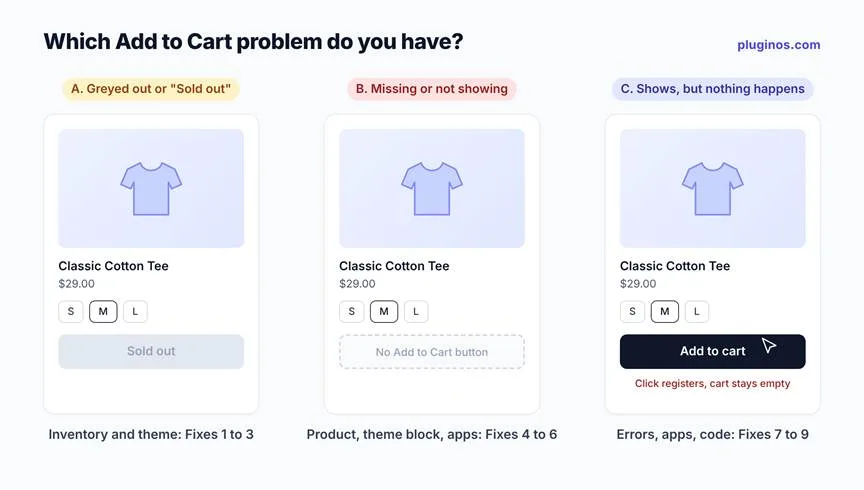
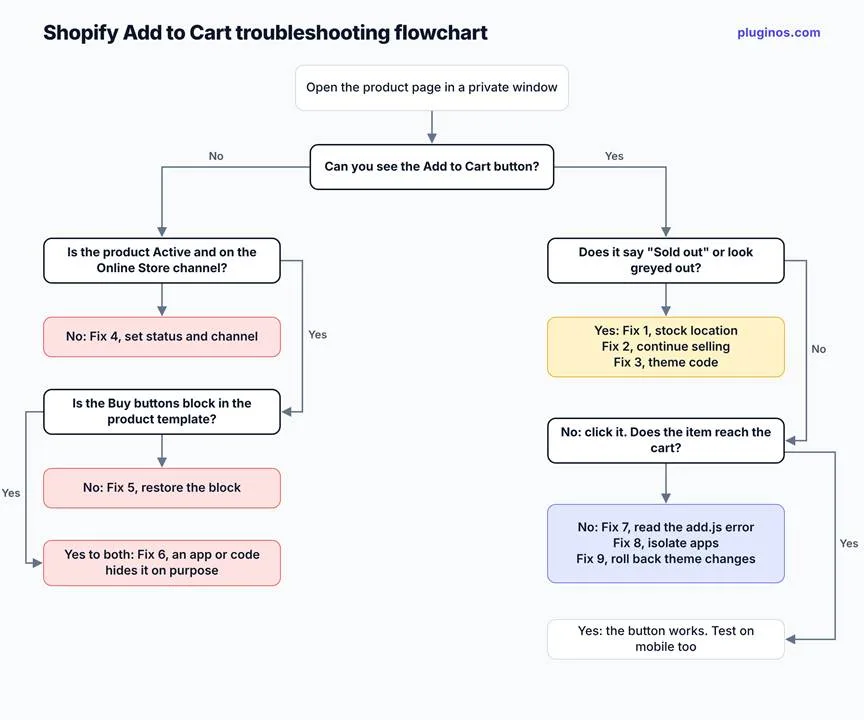
Quick answer: If the button says Sold out or is greyed out, check the variant's inventory at the location that fulfills online orders. If the button is missing, check the product is active, available on the Online Store channel, and that the theme's Buy buttons block is still there. If the button shows but does nothing, open your browser's developer tools and read the error returned when you click it. Then work through the matching fixes below.
This guide was checked against Shopify's Help Center and developer documentation in November 2026.
Find your symptom first
Match what you see on the product page to the row below, then jump to that fix.
What you see | Most likely cause | Start with |
Button says "Sold out" or is greyed out, but you have stock | Stock sits at a location that doesn't fulfill online orders | Fix 1 |
"Sold out" on a product you want to sell anyway (pre-orders, made to order) | "Continue selling when out of stock" is off | Fix 2 |
Greyed out even with "Continue selling" on | Theme code disables the button | Fix 3 |
Button missing on one product | Product is draft, unpublished, or not on the Online Store channel | Fix 4 |
Button missing on every product after a theme change | Buy buttons block removed or hidden | Fix 5 |
Button shows only for logged-in customers, or only in some countries | An app or custom code hides it on purpose | Fix 6 |
Button shows, click does nothing | An error from the cart, or a JavaScript problem | Fix 7 |
Started right after installing an app | App conflict | Fix 8 |
Started right after editing code or updating the theme | Broken theme code | Fix 9 |
Before you start: rule out your browser and Shopify
Take two minutes to confirm the problem is in your store, not your device.
Open the product page in a private (incognito) window. Browser extensions and stored cart data don't carry over, so if it works there, the problem is local to your browser.
2. Try a second device on mobile data, not your Wi-Fi.
3. Check Shopify Status for an active incident affecting storefronts or checkout.
4. Note exactly what you see, using the table above. It decides which section you need.
Symptom A: the button says "Sold out" or is greyed out
A greyed-out button usually means the theme thinks the selected variant can't be bought. Check inventory first, then the theme.
Fix 1: Check stock at the location that fulfills online orders
Shopify tracks inventory per location. If the location that fulfills online orders has zero stock, the product shows as out of stock online, even when another location holds plenty (Shopify Help Center).
1. In your Shopify admin, open Products and select the product.
2. Check the inventory of the exact variant that shows as sold out, not just the product total.
3. Make sure the stock sits at a location that fulfills online orders. Move or add stock there if it doesn't.
4. If you use a dropshipping app, check that the app's location has shipping rates set up. Shopify notes a missing rate can make in-stock products show as sold out.
Fix 2: Turn on "Continue selling when out of stock"
For pre-orders, made-to-order items, or products you restock quickly, you can keep the button active at zero stock.
1. Open the product or variant and go to its Inventory section.
2. Make sure Inventory tracked is on. The next option only appears when it is.
3. Select Continue selling when out of stock, then save.
Use this carefully: customers can then buy items you don't have. If you'd rather hide sold-out options than sell them, see the prevention tips below.
Fix 3: Remove code that disables the button
Some themes, or past code edits, add a disabled attribute to the button under certain conditions, and this overrides your inventory settings. In one Shopify Community case, a theme kept the button greyed out for out-of-stock items even with "Continue selling" on. Removing a disabled condition from the product template's Liquid file fixed it (Shopify Community).
1. Duplicate your live theme first: Online Store > Themes > … > Duplicate.
2. On the copy, open Edit code and search the product section files for the Add to Cart button and the word disabled.
3. Look at the condition around it. If it disables the button for a reason that doesn't apply to your store, adjust it, then preview the copy.
If you're not comfortable reading Liquid, hand this fix to a developer. A wrong edit here can break the button for every product.
Symptom B: the Add to Cart button is missing or not showing
A missing button means the product page isn't rendering the purchase form at all, either because of product settings, the theme layout, or something hiding it on purpose.
Fix 4: Check the product's status and sales channels
If only one product or a few are affected, start here.
1. Open the product in your admin and confirm Status is Active, not Draft or Archived.
2. Under Publishing (sales channels), make sure Online Store is selected.
3. If you sell in several countries with Shopify Markets, preview the page as a visitor from the affected country to check the product is available in that market.
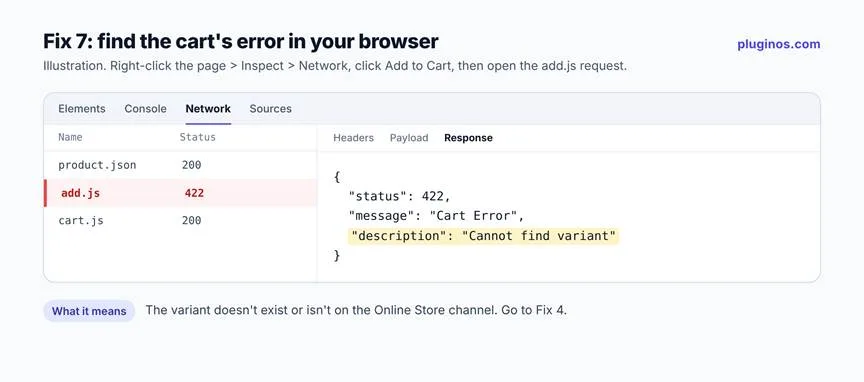
Shopify's cart returns the error "Cannot find variant" when a variant doesn't exist or isn't available on the Online Store channel (Shopify Ajax API docs). That makes channel availability the first thing to check when the button vanishes on a few products only.
Fix 5: Restore the Buy buttons block in the theme editor
If the button disappeared from every product after a theme change, the block that holds it may have been hidden or removed.
1. Go to Online Store and click Edit theme.
2. Open the Products template, then the default product template or the one the affected products use.
3. In the Product information section, look for the Buy buttons block. If it's hidden (eye icon) or gone, show it or add it back, then save.
Shopify's help docs note that accelerated checkout buttons (Shop Pay, Apple Pay and others) only appear where an Add to Cart button exists (Shopify Help Center). So if both disappeared together, this block is the likely cause. If some products use an alternate template, check that template too.
Fix 6: Check apps and code that hide the button on purpose
Some tools are designed to hide Add to Cart for certain visitors. Wholesale and B2B apps hide it until customers log in. Geo-restriction apps hide it in some countries. "Request a quote" apps replace it.
When the button appears for logged-in customers but not guests, or in one country but not another, it's almost always one of these rules doing its job too broadly. In one Shopify Community case, a button showed only for logged-in visitors because of custom code added to the theme (Shopify Community).
1. List every app that can hide prices or buttons, including ones you've uninstalled. Leftover code can stay in the theme after an app is removed.
2. Open each app's rules and check which products, customers and countries they target.
3. Test the page logged out, logged in, and from another country.
If you use Pluginos B2B Hide Price & Add to Cart or Geo Restrictions, check the targeting rules in the app first. Both are built to hide the button for chosen products, customer groups or countries, so an overly broad rule produces exactly this symptom.
Symptom C: the button shows, but clicking does nothing
When the button is visible but nothing reaches the cart, the click is failing behind the scenes. Read the error before you change anything.
Fix 7: Read the error your cart returns
Most themes add products by sending a request to Shopify's cart (/cart/add.js). When that request fails, Shopify returns an error message that tells you exactly why.
1. Open the product page in Chrome, right-click anywhere and choose Inspect.
2. Open the Network tab, then click Add to Cart.
3. Find the request named add.js (or add) and open its Response.
What the response means, according to Shopify's Ajax API documentation:
Response | What it means | What to do |
422, "You can't add more [product] to the cart" | The quantity asked for is more than the stock available, or all available stock is already in the cart | Check the variant's stock (Fix 1), or any quantity rules on the product |
422, "The product '[product]' is already sold out" | The variant has no stock to sell | Restock, or use Fix 2 |
422, "Cannot find variant" | The variant ID doesn't exist or isn't available on the Online Store channel | Check status and channels (Fix 4). For a variant created minutes ago, wait briefly and try again |
429 | Too many failed attempts on the same cart | Stop retrying, clear the cart, and fix the underlying error first |
No add.js request appears at all | The click never reached the cart: a script error, an app overlay, or broken button code | Check the Console tab for red errors, then Fix 8 and Fix 9 |
If you see an error in the Console tab, note the file name next to it. A file named after an app points to Fix 8; a theme file such as product-form.js or global.js points to Fix 9.
Fix 8: Isolate an app conflict
Apps that add cart drawers, upsells, bundles, sticky buttons or pop-ups all interact with the Add to Cart button. One of them can stop it working, or cover it with an invisible layer.
1. Duplicate your live theme and work on the copy.
2. Go to Online Store, click Edit theme on the copy, then click the App embeds icon in the sidebar. Turn the embeds off one at a time, saving and previewing the product page after each (Shopify Help Center).
3. When the button starts working, the last embed you turned off is the cause. Contact that app's support with the error message from Fix 7.
4. If turning off every embed doesn't help, check theme.liquid and the product section files for code left behind by apps you've uninstalled.
On mobile, also check for cookie banners, chat widgets and pop-ups sitting on top of the button. If the button works on desktop but not on a phone, an overlay is the usual reason.
Fix 9: Roll back a recent theme change
If the problem started right after editing code or updating your theme, undo that change first and investigate second.
• Code edit: in Edit code, open the file you changed and use the Older versions menu to restore an earlier saved version. It only covers changes saved in Shopify's code editor (Shopify Community).
• Theme update: publish your previous theme version again while you investigate. In one community case, Add to Cart switched to "Sold out" for every variant after a Dawn update, and republishing the previous version brought it back (Shopify Community).
• Still unsure? Preview a fresh, unedited copy of your theme from the theme library. If the button works there, the problem is in your customizations, not Shopify.
When to call a developer
Get help quickly if any of these apply. Every hour the button is broken costs sales.
• The error points to theme files, and you're not comfortable editing Liquid or JavaScript.
• Turning off every app embed doesn't fix it, and no recent change explains it.
• The cart returns 422 errors for products that clearly have stock at the right location.
• Your theme is heavily customized, so restoring an older version would undo work you need.
While you wait for a fix, publish your last working theme version so customers can keep buying. If you need hands-on help, the Pluginos development team builds and repairs Shopify themes and apps.
How to stop it happening again
• Duplicate before you edit. Make code changes and theme updates on a copy, test Add to Cart, then publish.
• Test after every app install. Add a product to the cart, on desktop and on a phone, right after installing or updating an app.
• Keep inventory at the right location. Receive stock into the location that fulfills online orders.
• Hide sold-out options instead of disabling the button. A disabled "Sold out" button on one variant confuses shoppers into thinking the whole product is unavailable. HV Hide Out of Stock Variant hides or strikes through unavailable variants automatically and shows them again when restocked. Read how to hide sold-out variants in Shopify for the full set of options.
• Turn "Sold out" into a sign-up. Let shoppers ask to be notified, so a sold-out variant still captures demand. See how to add "notify me when back in stock" in Shopify, or use Back in Stock - Restock Alert.
Frequently asked questions
Why is my Shopify Add to Cart button greyed out?
Usually because the selected variant has no stock at the location that fulfills online orders, and "Continue selling when out of stock" is off. If inventory looks fine, the theme's code may be disabling the button under a condition that doesn't fit your store.
Why did my Add to Cart button disappear?
Check whether the product is active and published to the Online Store channel. If the button vanished from every product, the Buy buttons block in your product template may be hidden or removed. Apps that hide prices for wholesale, logged-out or international visitors can also remove it.
Why does Add to Cart work on desktop but not on mobile?
On phones, an element such as a cookie banner, chat widget or pop-up often sits on top of the button and catches the tap. Turn off app embeds one at a time on a duplicate theme to find it.
What does "Cannot find variant" mean in Shopify?
It's an error from Shopify's cart. The variant doesn't exist, or it isn't available on the Online Store sales channel. For variants created or published moments ago, Shopify suggests retrying after a short delay.
Can an app break my Add to Cart button?
Yes. Apps that change the cart, add upsells or bundles, or hide prices all touch the button, and code from uninstalled apps can stay in your theme. Disabling app embeds one by one on a theme copy is the quickest way to find the culprit.
Written by
Pluginos
Pluginos is a WordPress, WooCommerce, and Shopify development team with 8+ years of experience building plugins, apps, and eCommerce solutions. We share practical tutorials and insights based on hands-on development experience.
Tools from this article
Related articles
10 Best Email Marketing Apps for Shopify in 2026 (Compared)
From welcome flows to abandoned cart emails, the right email app depends on your list size and budget. We compared 10 Shopify email marketing apps, starting with Kaching Email Marketing, on pricing, automations and limits. We also explain when Shopify's built-in Messaging, with 10,000 free emails a
Nov 22, 2026 · 16 min read
10 Best Shopify Popup Apps in 2026: Pricing & Features
Popups can grow your email list or raise order value, but the wrong one slows your store or annoys shoppers. We compared 10 Shopify popup apps, led by Kaching Discount Upsell Popup, on pricing, popup types and drawbacks. We also explain how to stay within Google's guidance on intrusive popups.
Nov 22, 2026 · 17 min read
10 Best Post-Purchase Upsell Apps for Shopify in 2026
Post-purchase upsells show a one-click offer after checkout, before the Thank You page, so customers don't have to re-enter their card. We compared 10 Shopify apps, led by Kaching Post Purchase Upsell, on pricing and features.
Nov 22, 2026 · 16 min read