
How to Hide Out of Stock Variants in Shopify (2026 Guide)
Learn 4 ways to hide out-of-stock and sold-out variants in Shopify: the free built-in variant publishing, theme settings, copy-paste CSS for Dawn and Horizon, and an app that hides and restores variants automatically.

Sep 30, 2026 · 15 min read
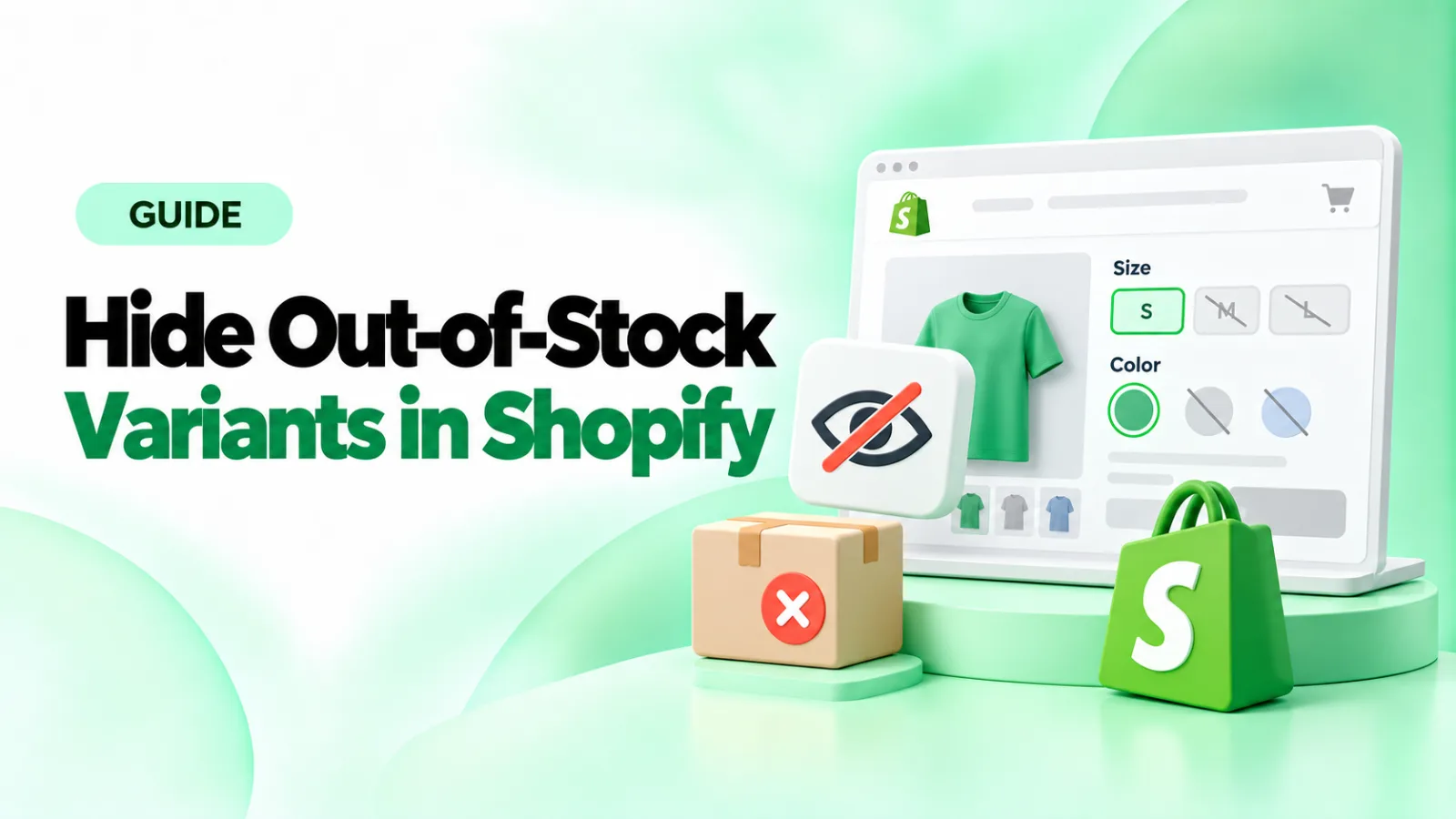
You can hide out-of-stock variants in Shopify without deleting them. Since May 2026, Shopify lets you unpublish a single variant from your Online Store, right from the product page. The catch is that it's manual: Shopify won't hide a variant when out of stock or bring it back when you restock.
This guide covers four ways to hide sold-out variants in Shopify, from the free built-in option to fully automatic hiding. It also shows how to test your setup so customers never see an option they can't buy.
Quick answer: which method should you use?
Method | Best for | Automatic when stock changes? | Needs code? | Cost |
|---|---|---|---|---|
1. Native variant publishing | A few variants that are discontinued or out for a while | No, you hide and republish by hand | No | Free |
2. Theme settings | Themes that include a hide option | Yes, if your theme has it | No | Free |
3. Theme code (CSS or Liquid) | Stores comfortable editing their theme | Yes, it reads live stock | Yes | Free, but needs upkeep |
4. An app | Stores that want hiding and restoring on autopilot | Yes | No | Monthly fee |
If you only need to hide a handful of variants, start with Method 1. If variants sell out and restock often, use Method 3 or 4 so you don't have to keep republishing them.
Sold out, unavailable, or unpublished: what's the difference?
These terms get mixed up, and each one needs a different fix. A variant is one version of a product, such as a Black T-shirt in size Medium.
Term | What it means | What shoppers see by default |
|---|---|---|
Sold-out variant | The variant exists, its stock is 0, and you've stopped selling when out of stock | The option shows as crossed out, greyed out or labelled "Sold out" |
Nonexistent combination | You never created that variant (for example, no Green in XL) | Most themes show it exactly like a sold-out variant |
Unpublished variant | You've hidden the variant from a sales channel; it stays in your admin | It doesn't appear on that channel |
Fully sold-out product | Every variant of the product is sold out | The whole product shows as sold out |
Most themes can't tell a sold-out variant from a combination that was never created. Both count as "unavailable", so any theme code that hides one will usually hide the other too.
Method 1: Hide a variant with Shopify's variant publishing
Shopify's built-in variant publishing is the simplest way to hide an out-of-stock variant in Shopify without an app. The variant keeps its inventory, history, and settings in your admin; it just stops showing on the channels you choose.
Hide one variant (desktop)
From your Shopify admin, go to Products and open the product.
In the Variants section, find the variant you want to hide.
In the Publishing column, click All (or the channel icons shown for that variant).
In the Manage publishing dialog, uncheck Online Store.
Click Done, then Save.
The variant is now hidden on your online store. Leave other channels, such as Point of Sale, checked if you still want to sell it there.
Hide several variants at once
On the product page, tick the variants you want to hide, then click ⋯ > Manage publishing and uncheck Online Store. To work across many products, use Shopify's bulk editor, which also supports variant publishing.
Hide a variant in the Shopify mobile app
Tap Products and open the product.
In Variants, tap the variant.
Tap the ⋯ menu, then Manage publishing.
Uncheck Online Store and tap Save.
Bring a variant back after restocking
Shopify doesn't republish variants for you. When stock arrives, open the product, click the variant's Publishing entry, tick Online Store again, then click Done and Save.
To find products that are hiding variants, look for Excludes some variants in the product's Publishing section.
Three things to know before you rely on this
If you unpublish every variant, the whole product disappears from that channel until you republish at least one.
It's manual. Shopify doesn't hide variants when they sell out or show them again when they're restocked. For that, use Method 3 or 4.
You can't schedule it. Shopify doesn't support publish dates for individual variants.
On products with two or more options, such as Color and Size, preview the product page after hiding a variant. A size that's still available in other colors will keep showing, which is the behavior you want.
Method 2: Check your theme settings
Some premium themes include a setting that hides unavailable variants. It takes two minutes to check:
Go to Online Store > Themes and click Customize.
Open a product page in the preview.
Click the Variant picker block (it may sit inside Product information).
Look for a setting such as "Hide unavailable variants" or "Hide sold-out options", switch it on, and click Save.
Shopify's free Dawn (version 16.0.0) and Horizon themes don't include this setting as of September 2026. They show sold-out options crossed out or labelled "Unavailable" instead. If you use either theme, skip to Method 3 or 4.
If your theme does have the setting, test it on a sold-out variant. Some theme settings only hide combinations that don't exist, not variants that have sold out.
Method 3: Hide sold-out variants with theme code
A few lines of CSS can hide sold-out options on the product page. Because the code reads live stock, options disappear when they sell out and return when you restock, with no extra work.
Before you start:
Duplicate your theme (Online Store > Themes > ⋯ > Duplicate) and test on the copy.
The code is theme-specific. The snippets below match the markup in Shopify's own theme files for the versions named. They won't work in other themes without changes.
Theme updates can remove your edits. Recheck after every update.
It hides both sold-out variants and combinations that don't exist, because the theme marks both the same way.
Dawn (version 16.0.0)
Dawn marks sold-out button options with a disabled class and sold-out swatches with a visually-disabled class.
Go to Online Store > Themes > Customize and open a product page.
Click the Product information section.
Scroll to Custom CSS and paste:
/* Dawn 16.0.0: hide sold-out and unavailable button options and swatches */
.product-form__input input.disabled + label,
.product-form__input .swatch-input__input.visually-disabled + .swatch-input__label {
  display: none;
}
Click Save and check a product with a sold-out variant.
This works for the Pills (button) and swatch styles, not the Dropdown style. CSS can't reliably hide items in a dropdown list. If your variant picker uses dropdowns, change its Style to Pills in the same block settings, or use an app.
Horizon
Horizon marks sold-out options with aria-disabled="true" instead of a class. Checked against Horizon's published theme code in September 2026.
Go to Online Store > Themes > Customize and open a product page.
Select the product section that holds the variant picker.
In Custom CSS, paste:
/* Horizon: hide sold-out and unavailable buttons and swatches */
.variant-option__button-label:has(input[aria-disabled="true"]) {
  display: none;
}
Click Save and test.
Like Dawn, Horizon's dropdown style lists sold-out values as "Unavailable," and this CSS won't remove them. Switch the variant picker to buttons or swatches, or use an app.
Other themes
Other themes use different markup, so you'll need to find how yours marks a sold-out option:
Open a product with a sold-out variant in Chrome.
Right-click the crossed-out option and choose Inspect.
Look for a class or attribute that only sold-out options have, such as
disabled,unavailable,sold-outoraria-disabled.Write a CSS rule that hides elements with that marker, and test it.
If you're not comfortable with this, a theme developer or an app is the safer choice.
CSS vs Liquid: what's the difference?
CSS only hides an option from view; it's still in the page code. Liquid code removes the option before the page loads. Liquid is more thorough but riskier, because a mistake can break your variant picker. For most stores, CSS on a duplicated theme is enough.
Method 4: Hide variants automatically with an app

Disclosure: HV Hide Out of Stock Variants is made by Pluginos, the publisher of this guide.
If you want Shopify to hide a variant when out of stock and show it again after restocking, an app saves you from republishing by hand or maintaining theme code. HV Hide Out of Stock Variants is built for exactly this job.
What the app does
According to its , the app can:
Hide sold-out variants automatically and show them again when they're restocked.
Hide, disable (grey out) or strike through sold-out variants, so you choose what shoppers see.
Apply rules based on stock status, an inventory threshold, missing images or a zero price.
Target specific products, collections, tags, variants or countries.
Override individual variants manually and apply changes in bulk.
Run scheduled rules with start and end dates, which suits product drops and seasonal stock.
How to set it up
Install HV Hide Out of Stock Variants from the Shopify App Store.
Open the app from Apps in your Shopify admin.
Create a rule: choose what counts as sold out (for example, inventory is 0) and whether to hide, disable or strike through the variant.
Choose which products the rule applies to: all products, or selected collections, tags or products.
Save the rule, then open a product with a sold-out variant on your store to check the result.
Restock the variant in your admin and reload the product page to confirm it reappears.
See the full feature list, screenshots and pricing on our hide sold out variants Shopify app page.
Pricing
The app costs $4.99 a month or $49 a year, with a 7-day free trial (prices on the App Store listing as of September 30, 2026). Check the listing for current pricing.
What to look for in any variant-hiding app
Whichever app you choose, check that it:
Works with your theme and your picker style: buttons, swatches or dropdowns.
Handles products with two or three options, not just one.
Restores variants automatically after restocking.
Lets you choose between hiding and disabling.
Offers a free trial, so you can test it on your real products before paying.
How hiding works on products with Color and Size
Products with more than one option need care, because a size can be sold out in one color and in stock in another. Take a T-shirt with Color (Black, Blue) and Size (S, M, L):
S | M | L | |
|---|---|---|---|
Black | In stock | Sold out | In stock |
Blue | In stock | In stock | In stock |
You don't want to hide Medium completely, because Blue Medium is available. You want Medium hidden only when a shopper has picked Black.
Shopify decides whether an option is available based on the options picked before it. With Color listed first:
A shopper picks Black, and Medium is marked unavailable, so theme code hides it.
The shopper switches to Blue, and Medium is marked available again, so it reappears.
With Size listed first, the result changes. Medium stays visible, because Blue Medium is in stock. After the shopper picks Medium, Black becomes the unavailable option instead.
Tip: put the option shoppers choose first, usually Color, first in your product's option list. Hidden options then follow the order people actually shop in.
Why a hidden variant may still show (or still sell)
Hiding an option is a display change. What a customer can buy is controlled by your inventory settings, so check these before you hide anything.
"Continue selling when out of stock" is on. Shopify treats the variant as available even at 0 stock, so theme code and most apps won't hide it. Turn it off in the variant's Inventory section if you want it to count as sold out.
Inventory isn't tracked. If Track quantity is off, Shopify never marks the variant as sold out. Turn tracking on and enter the real stock count.
The option is only hidden with CSS. The option is still in the page code, but a sold-out variant can't be checked out while your inventory settings say it's sold out. That's what actually protects you from overselling.
Someone has a direct link. Links that include ?variant= point to one specific variant. After hiding a variant, open an old link to it and check what your store shows.
Dropdowns, swatches, quick add and mobile
The same product can show variants in several places, and each one may need its own check.
Dropdowns. Most themes list sold-out values with "Unavailable" next to them, and CSS can't reliably remove them. Switch to buttons or swatches, or use an app that supports dropdowns.
Color and image swatches. Many themes mark sold-out swatches with a different class from buttons. That's why the Dawn code above has a separate line for swatches.
Quick add and featured products. Quick-add pop-ups and featured-product sections often use separate code from the main product page. A fix on the product page may not apply there, so test them too.
Mobile. Check on a real phone. Hidden options can leave odd gaps, and a picker that fits on desktop may wrap differently.
Product pages vs collection filters
Everything in this guide changes the product page. It doesn't change collection filters. Shopify's filters match whole products, so filtering a collection by Medium can still show a shirt whose Medium is sold out, as long as something else on that shirt is in stock. Fixing filters needs a variant-level filter app or separate collection code.
To hide products where every variant has sold out, use a different approach, such as an automated collection with the condition Inventory stock is greater than 0.
Should you hide, disable or offer a back-in-stock alert?
Hiding isn't always the best choice. Match the approach to how long the variant will be gone:
Situation | Best approach | Why |
|---|---|---|
Discontinued or one-of-a-kind item | Hide | It won't come back, so showing it only adds clutter |
Short stockout of a popular size | Disable or strike through | Shoppers learn the size exists and can come back |
Best-seller with steady demand | Disable plus a back-in-stock alert | You capture the shopper's email and notify them on restock |
Upcoming variant not yet for sale | Unpublish (Method 1) | Set it up in advance and publish on launch day |
If you hide a color that's only briefly out of stock, shoppers may think you never made it. A greyed-out option with a "notify me" button keeps that demand.
Test checklist before you go live
Run through these checks on a product with at least one sold-out variant:
The sold-out option is hidden (or disabled) on the product page.
On a Color and Size product, switching colors shows and hides the right sizes.
Restocking the variant brings it back (republish it first if you used Method 1).
A product with every variant sold out still behaves the way you want.
An old direct link to the hidden variant doesn't let anyone buy it.
Buttons, swatches and dropdowns all behave correctly, if your store uses more than one.
Quick add and featured-product sections show the same result.
Everything looks right on a phone.
After your next theme update, your code or app still works.
Troubleshooting
Problem | Likely cause | Fix |
|---|---|---|
The sold-out variant still shows | "Continue selling when out of stock" is on, or inventory isn't tracked | Turn off Continue selling and turn on Track quantity |
The CSS did nothing | Your theme, version or picker style doesn't match the code | Inspect the option and update the selector, or switch to buttons |
A size vanished for every color | With Size listed first, a size only hides when it's sold out in every color | Check stock for that size in each color |
The whole product disappeared | Every variant was unpublished | Republish at least one variant |
Code stopped working | A theme update replaced your edits | Reapply the code to the new theme version |
The page opens on a sold-out variant | The theme selects that variant from a link or by default | Check the link, or reorder variants so an in-stock one comes first |
FAQ
Can Shopify hide sold-out variants automatically without an app?
Not from the admin. Shopify's variant publishing is manual. For automatic hiding without an app, use theme code (Method 3) or a theme with a built-in hide setting.
Does unpublishing a variant delete it?
No. The variant stays in your admin with its inventory and sales history. It's only hidden from the channels you unchecked, and you can republish it at any time.
What happens if I unpublish every variant of a product?
The whole product is hidden from that channel until you republish at least one variant.
Can I schedule a variant to appear on a certain date?
Not with Shopify's built-in tools, which don't support publish dates for individual variants. Some apps, including HV Hide Out of Stock Variants, offer scheduled rules.
Will hiding sold-out variants affect my SEO?
The product page stays live either way, so search engines can still reach it. Hiding options changes what shoppers see on the page, not whether the page exists.
How do I hide sold-out variants in the Avenue theme or another paid theme?
First check the theme's variant picker settings (Method 2) and its documentation. If there's no setting, use the inspection steps in Method 3 to find how your theme marks sold-out options, or use an app.
Summary
To hide a few variants, use Shopify's variant publishing and remember to republish them after restocking. To hide and restore variants automatically, add a small piece of theme code for Dawn or Horizon, or install an app like HV Hide Out of Stock Variants. Whichever method you pick, run the test checklist before you rely on it.
Written by
Pluginos
Pluginos is a WordPress, WooCommerce, and Shopify development team with 8+ years of experience building plugins, apps, and eCommerce solutions. We share practical tutorials and insights based on hands-on development experience.
Related articles

10+ Best Shopify Subscription Apps in 2026: Pricing & Features Compared
Compare the 10 best Shopify subscription apps in 2026, including Appstle, Recharge, Seal, and Shopify Subscriptions. Explore pricing, transaction fees, key features, and the best option for your store.
Sep 28, 2026 · 12 min read
How to Add “Notify Me When Back in Stock” in Shopify (2026)
Want shoppers to return when a sold-out item is available again? Learn how to add a Notify Me button in Shopify, set up restock emails with Back in Stock‑ Restock Alert Shopify App by Pluinois, and test alerts for the exact product variant a customer requested.
Sep 26, 2026 · 8 min read
7 Best Shopify Review Apps in 2026: Features, Pricing & Comparison
Compare 7 of the best Shopify review apps for 2026, including Judge.me, Loox, Junip, Okendo, Yotpo, Stamped, and REVIEWS.io. Explore current pricing, free plans, photo and video reviews, automated review requests, integrations, key features, and limitations to find the right review app for your Shop
Sep 25, 2026 · 21 min read